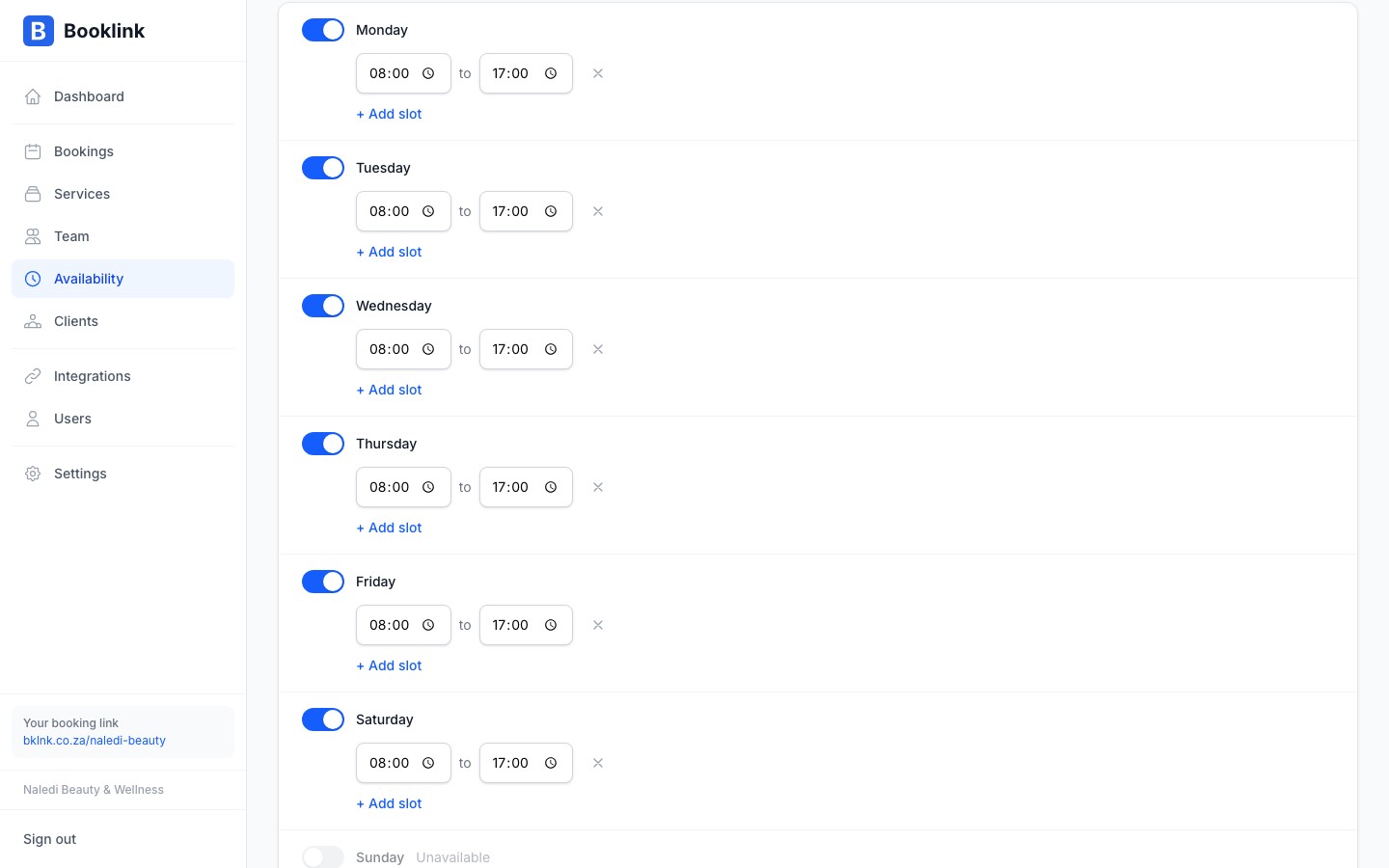
You can add more than one availability window per day. This is useful if you take a lunch break, work split shifts, or have different hours on certain days. For example, you might be available from 08:00 to 12:00 and then again from 13:00 to 17:00, with an hour off for lunch.
How multiple slots work
Each availability rule is an independent time window. To create a break in the middle of the day, add two separate rules for the same day:
- Morning block — e.g. Monday 08:00–12:00
- Afternoon block — e.g. Monday 13:00–17:00
Booklink will offer appointment slots within each window and leave the 12:00–13:00 gap empty. No appointments will be offered during the gap.
Adding a second time slot to a day
- 1
Open Availability
Navigate to Availability in the sidebar. You should already have at least one rule set up for the day you want to split.
- 2
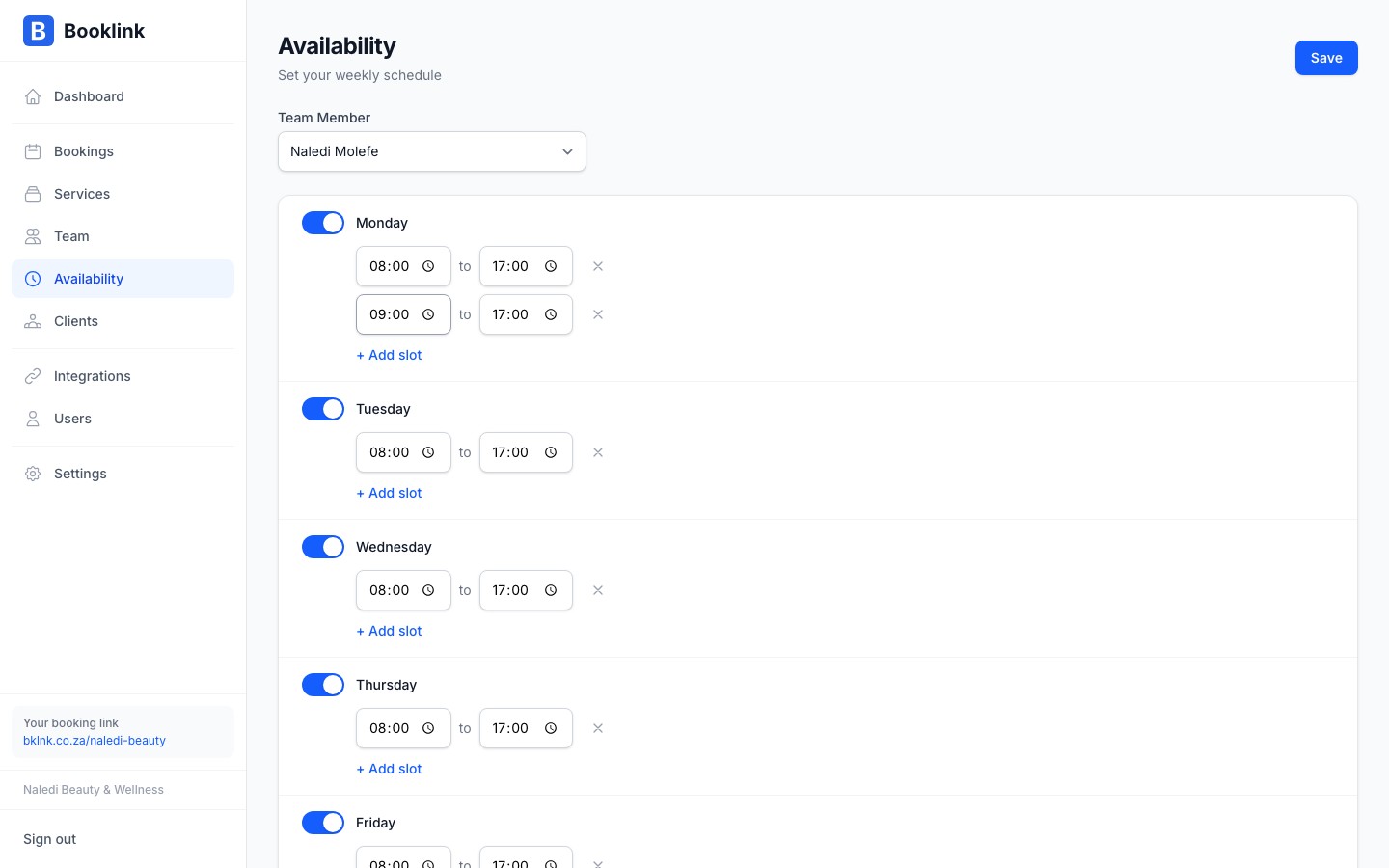
Add a new time slot
Click Add time slot and select the same day as the existing rule. Enter the start and end times for the second window (e.g. 13:00–17:00 for an afternoon block).
- 3
Save the new slot
Click Save. The day now shows two separate windows. The gap between them is the break — no appointments will be offered during that time.
Naledi's typical Wednesday schedule
Naledi takes Wednesdays as a shorter day. She sees clients from 08:00 to 12:00 in the morning, takes a lunch break, and is back for walk-ins and last-minute bookings from 14:00 to 17:00. She has two rules for Wednesday: 08:00–12:00 and 14:00–17:00.Note
There is no limit on the number of time slot rules per day. You can add as many windows as you need — for example, if you work a morning session, take an afternoon break, and return for a late session.Editing and removing time slots
To edit a time slot, click the edit icon next to the rule. To remove a slot entirely, click the delete icon. Removing a slot means no appointments will be offered during that window going forward — existing confirmed bookings are not affected.