
The Calendar page is your central view of all appointments and group sessions. You can switch between a visual week grid and a flat list, jump between weeks, filter by appointment type or team member, and act on bookings that are waiting for payment or confirmation.
Week view vs list view
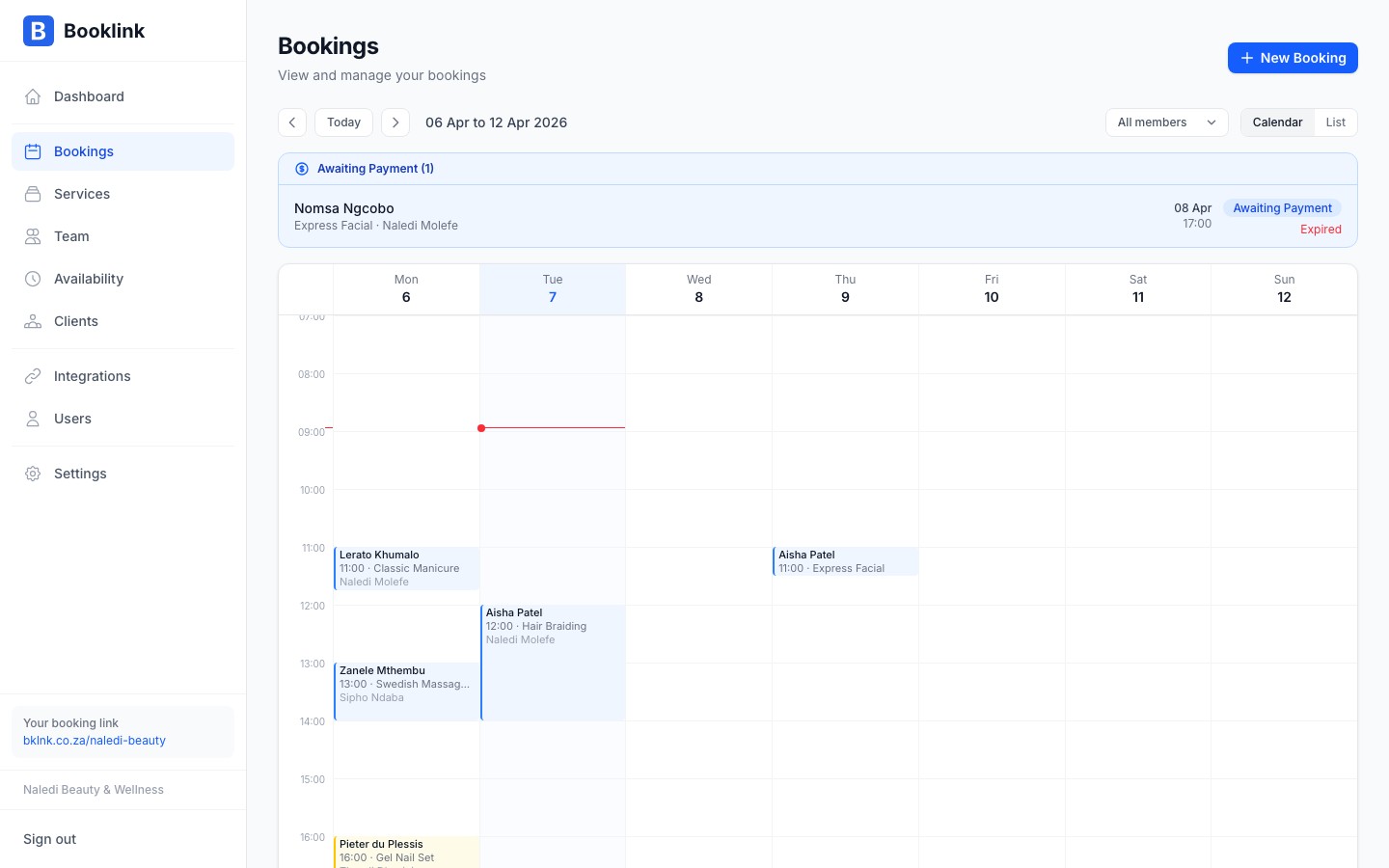
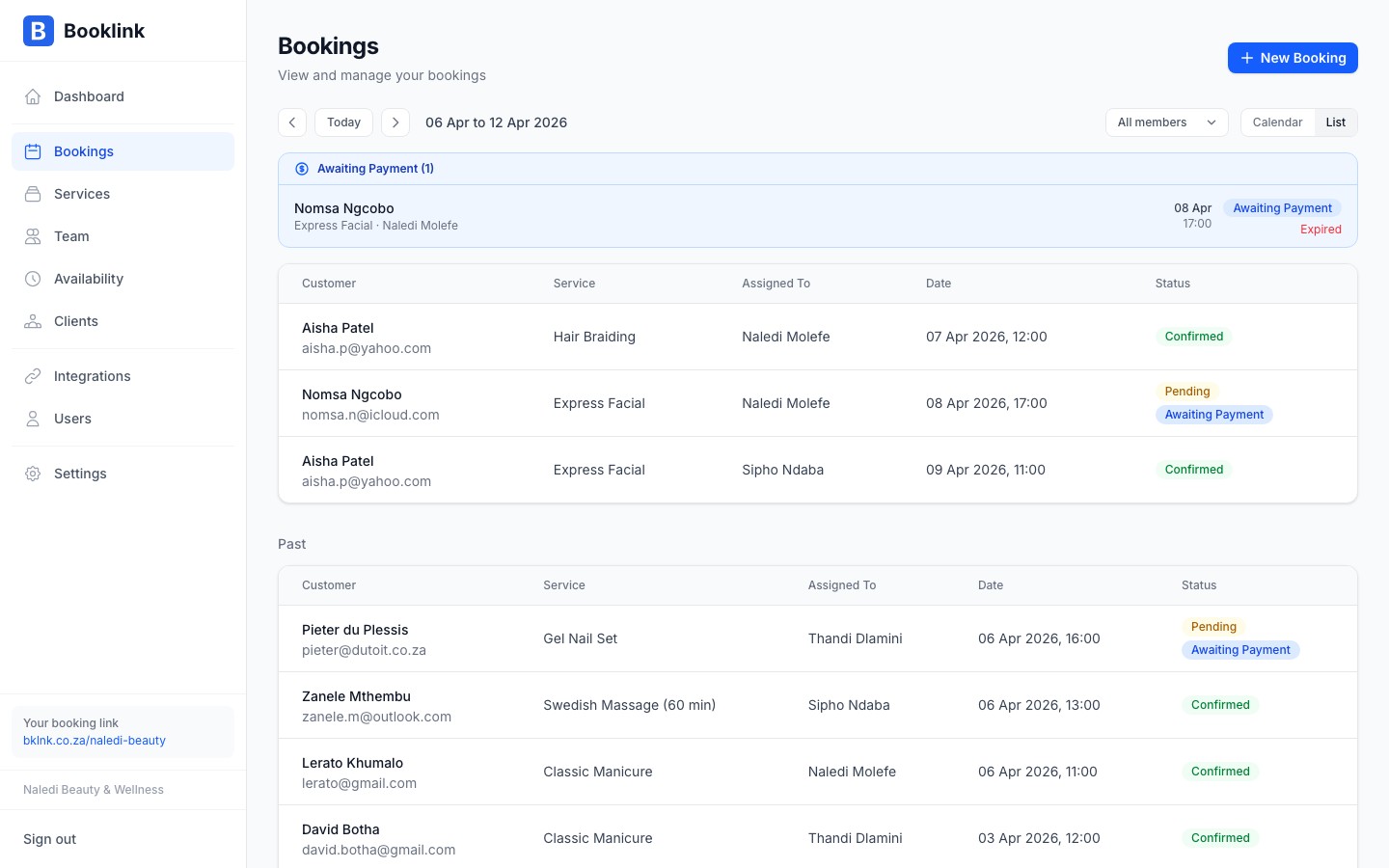
Booklink gives you two ways to look at your bookings:
- Week view: a week grid with each booking shown as a coloured block at its scheduled time. Pending bookings have an amber edge, confirmed bookings a blue one. Useful for spotting gaps and busy periods at a glance.
- List view: a chronological table of upcoming bookings with client name, service, assigned team member, date, and status. Useful for scanning many bookings quickly.
Toggle between the two using the Week and List buttons in the top-right corner of the Calendar page. On a phone, the list view is the default.
Bookings that need attention
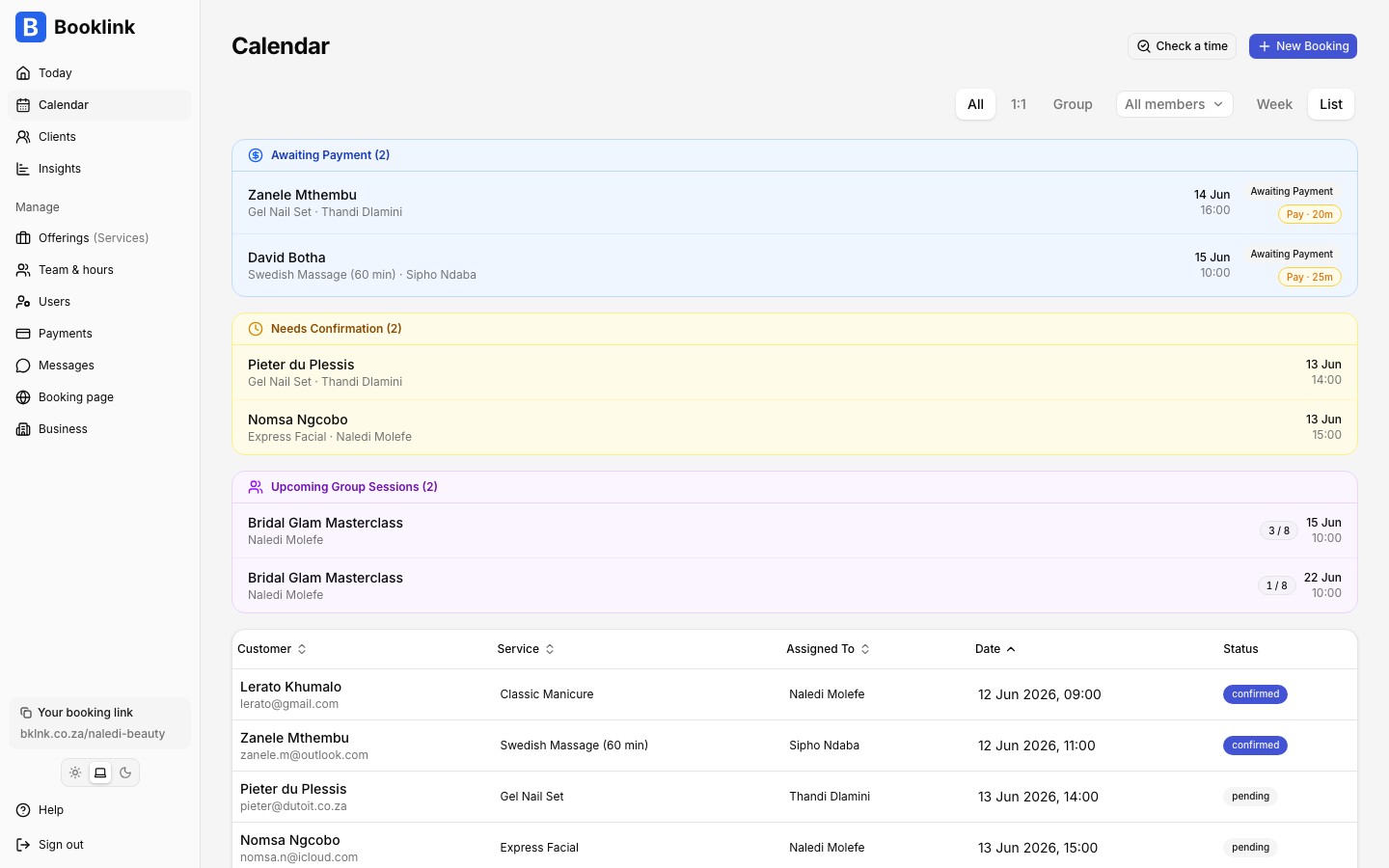
In list view, bookings that need action are pulled out into coloured bands at the top of the page:
- Awaiting Payment (blue): bookings where the customer still has to pay, each with a live countdown to its payment expiry.
- Needs Confirmation (yellow): pending bookings waiting for your approval.
- Upcoming Group Sessions (purple): one row per scheduled group session showing booked seats against capacity.
The Needs you cards on the Today page deep-link straight into these bands.
Navigating weeks
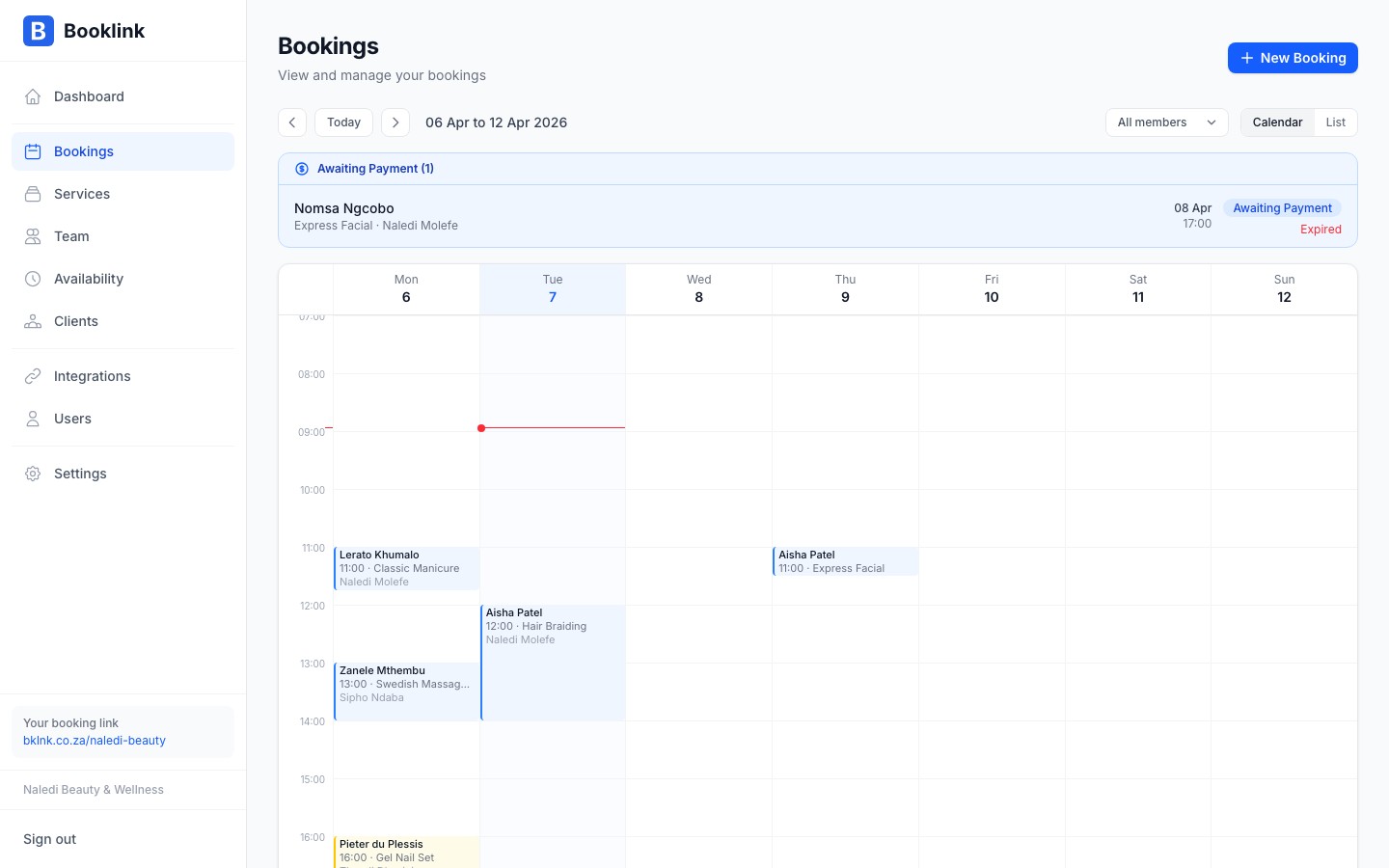
In week view, use the left and right arrow buttons to move backwards or forwards one week at a time. The date range currently in view is shown next to the arrows, and a red line marks the current time on today's column. Click Today at any time to jump back to the current week.
Past weeks load the first time you navigate to them, so reviewing history is as simple as stepping backwards. Cancelled bookings are not shown in the week grid; open a client's record to see their full booking history including cancellations.
Filtering
Two filters appear above the calendar when they are relevant:
- Appointment type: if you run group or scheduled services, chips let you switch between All, 1:1, and Group. Group sessions show in the week grid as a single block per session, not one per attendee.
- Team member: if your account has more than one team member, a dropdown lets you narrow the view to one person. Select All members to return to the combined view.
Tip
Users whose Calendar permission is scoped to "Own" automatically see only their own bookings. The team member filter is most useful for owners and front-desk users who manage the full roster.Checking a specific time
The Check a time button opens a small tool that explains whether a given service, team member, date, and time is bookable, and if not, which rule is blocking it (working hours, a blockout, an existing booking, and so on). It is handy when a customer asks "can you fit me in on Thursday at 3?" and you want a definitive answer fast.