
Creating a service takes just a minute, on a single screen: pick the kind of offering, optionally start from a template, fill in a name, duration, and price, then create it. Everything else, booking rules, payment, the booking form, and team assignment, is configured afterwards on the offering page.
How to create a service
- 1
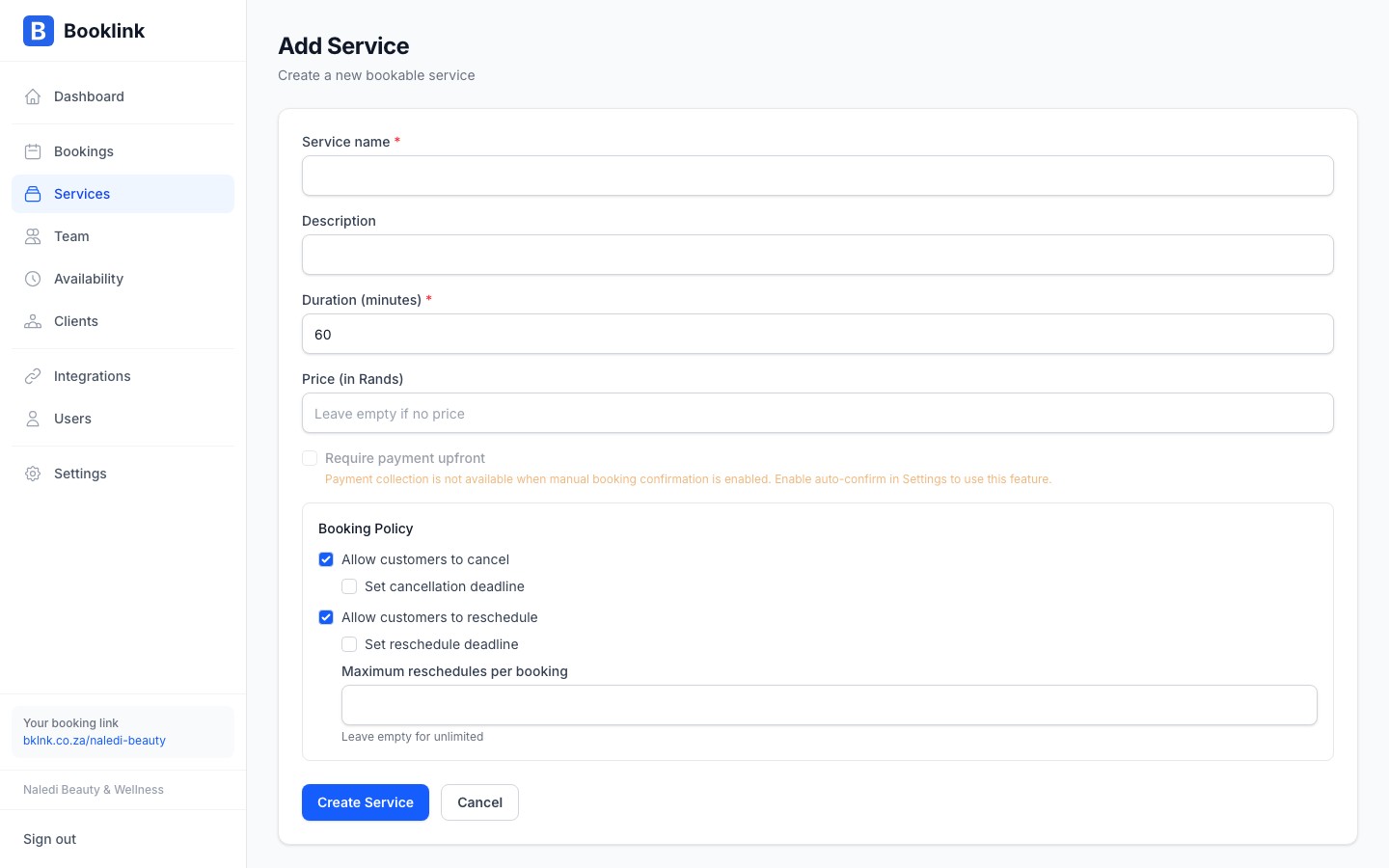
Open the Add Service screen
Navigate to Offerings in the left sidebar and click Add service.
- 2
Choose the kind of offering
Pick 1:1 appointment (one client per booking, from your availability), Workshop or event (sessions you schedule one by one), or Recurring class (sessions that repeat weekly or monthly). This is the one choice you cannot change later, so choose carefully. Workshop and recurring offerings also ask for a capacity per session.
- 3
Optionally start from a template
Under Or start from a template, pick a preset for a common service type to prefill the fields below, or leave Blank selected and fill them in yourself.
- 4
Fill in the essentials
Type a clear, client-facing name. For example, Naledi Beauty & Wellness uses names like "Classic Manicure", "Gel Polish Application", and "Swedish Massage (60 min)".
Enter the duration in minutes (e.g.
45for a 45-minute appointment); Booklink uses this to calculate available time slots. Price in Rands is optional, leave it empty for no price. You can also assign a category to group similar offerings on your public booking page.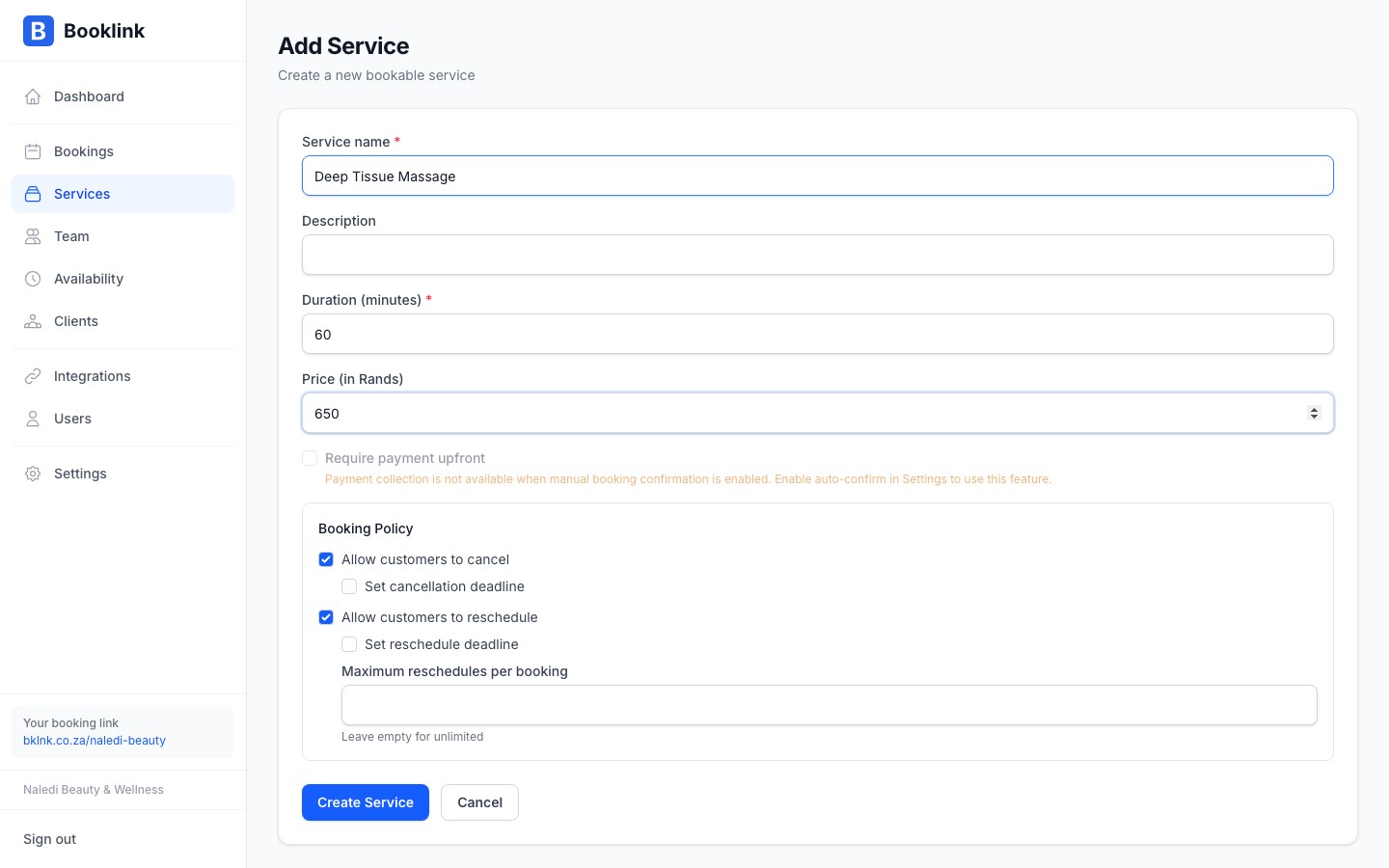
- 5
Create the offering
Click Create offering. You'll be taken to the offering page, where you can fine-tune pricing and options, booking rules, the booking form, and team assignment.
Per-service booking terms
You can override the account-wide booking terms for an individual service. Look for the Booking terms card in the Booking rules section of the offering page. See Booking terms for full details.Separate services for separate durations
If you offer the same type of service in different lengths — for example, a 30-minute express facial and a 60-minute deep-cleanse facial — create these as two separate services. This gives clients a clear choice and ensures your calendar blocks the correct amount of time.Note
After creating a service, you can refine it further by setting a booking policy (cancellation and rescheduling rules) or requiring a deposit or full payment upfront. See the related articles for details.Duplicating an offering
To set up a new offering like one you already have, open the existing offering, click the ⋮ menu at the top and choose Duplicate offering. Booklink creates <name> (copy) with the same description, variants and prices, booking rules, payment settings, team members, rooms, category, booking terms and instructions, booking form questions and images.
The copy starts inactive, so clients can't book it until you have renamed it, checked it and turned it on. Sessions, packages, commissions, automations and bookings stay with the original. Save any changes first: the menu item is unavailable while the offering has unsaved changes. On the free plan, duplicating counts towards your one offering.