
Sometimes name, email, and phone are not enough. A massage therapist may need to ask about injuries, a tutor about the learner's grade, a class about dietary requirements. Custom booking questions let you add your own fields to the booking form, per service, and the answers are saved on each booking.
Adding questions to a service
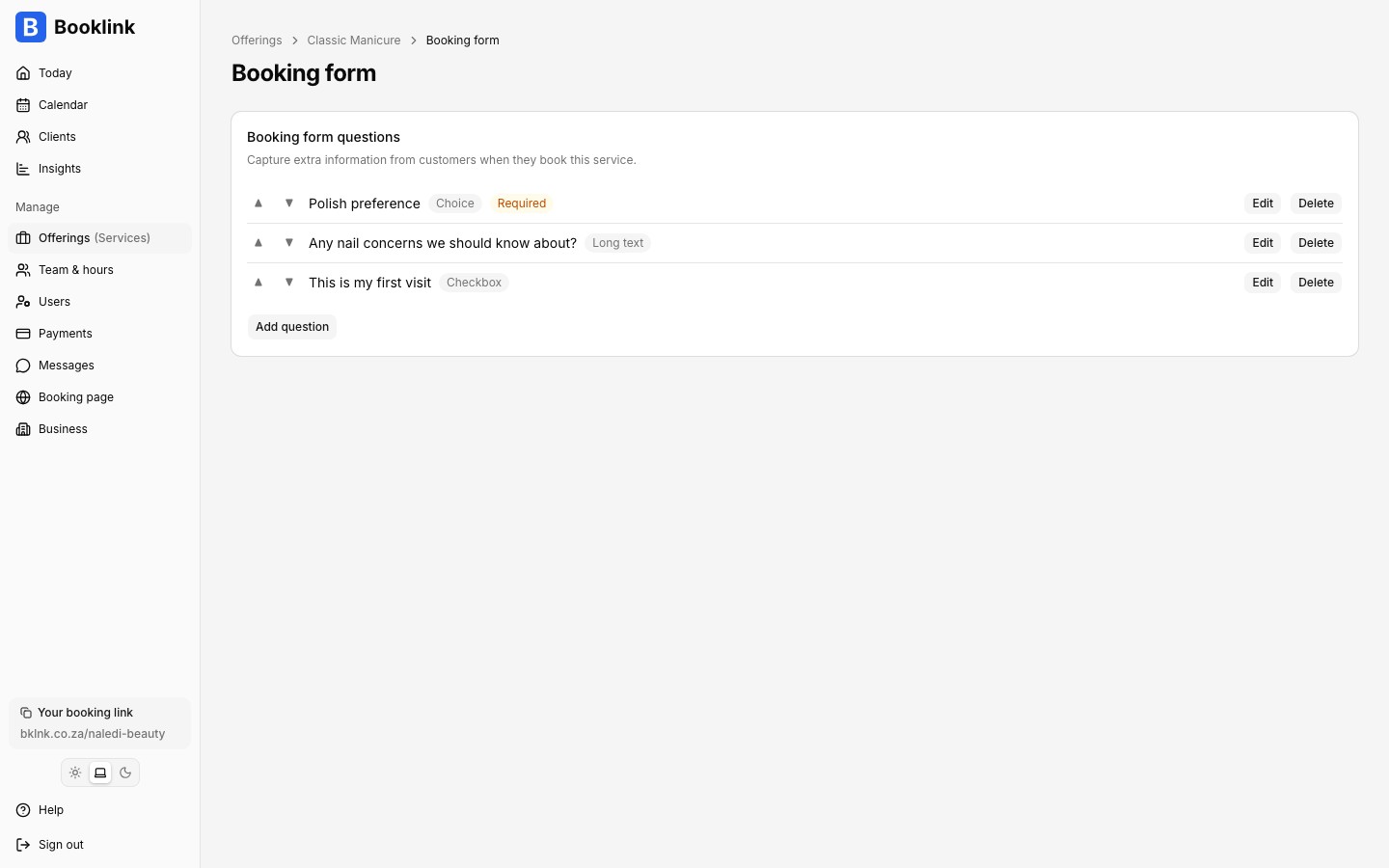
Open the service and go to its Booking form section. Click Add question and pick a type:
- Text: a single-line answer, with an optional maximum length
- Long text: a multi-line answer for longer notes
- Number: a numeric answer, with optional minimum and maximum values
- Choice: a dropdown where you define the options
- Checkbox: a simple yes/no tick
Each question has a label, optional help text shown below the field, and a required switch. You can reorder questions with the arrows and add up to 20 per service.
What customers see
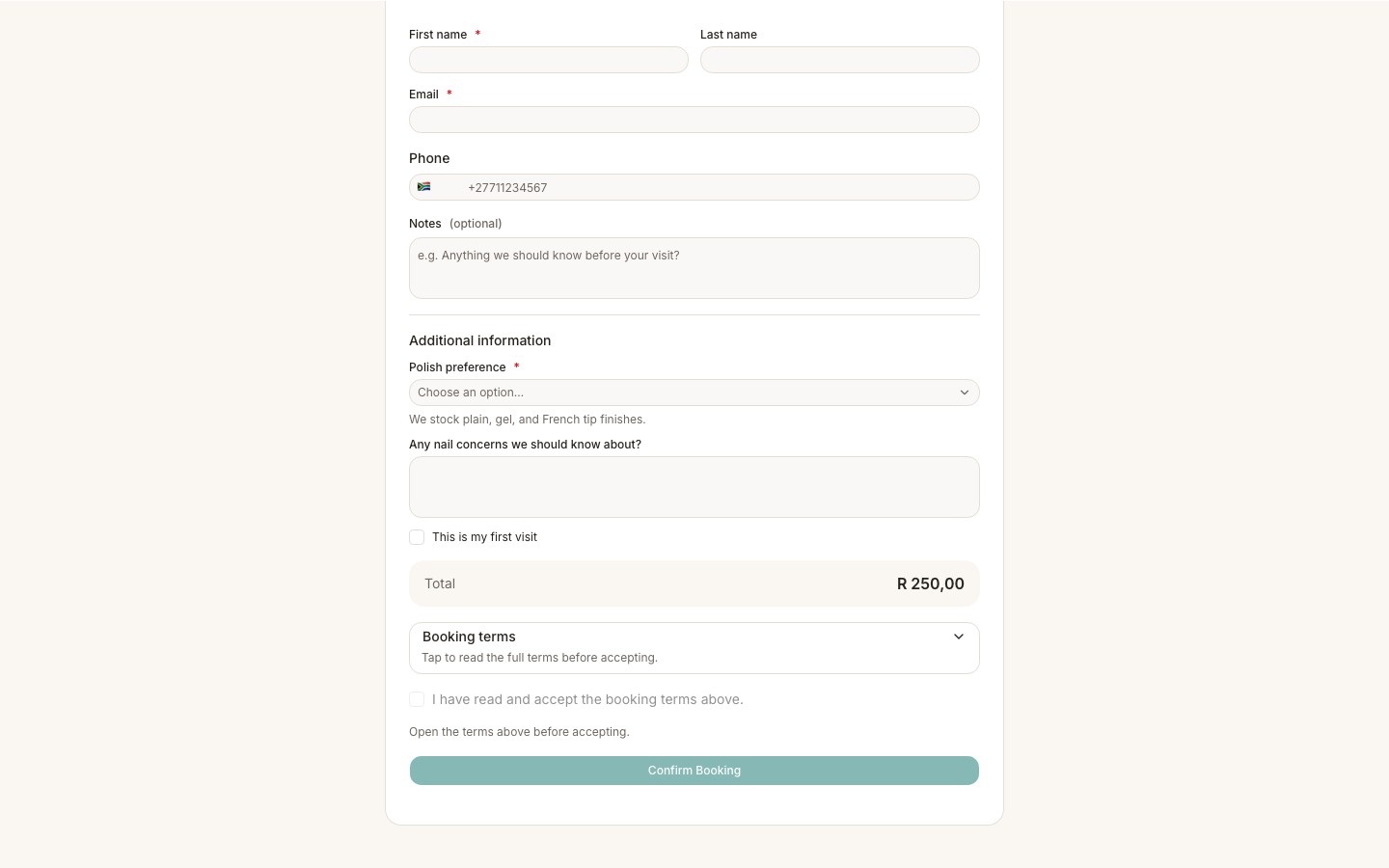
Your questions appear on the contact-details step of the booking flow, after the standard name and contact fields. Required questions must be answered before the customer can confirm the booking.
Where the answers go
Answers are saved on the booking and shown on its detail page, so the assigned team member can read them before the appointment. For group sessions, the attendee CSV export includes one column per question, which is handy for printing a class register with everyone's answers.
Answers are snapshots
Each booking stores the question and answer exactly as they were at booking time. If you later rename, change, or delete a question, existing bookings keep the original wording and answers.Same questions on several offerings
To reuse a booking form, set it up on one offering, then open that offering's ⋮ menu and choose Duplicate offering. The copy keeps every question, and you only change what differs. See Creating a service.Keep the form short
Every extra required field adds friction. Ask only what you genuinely need before the appointment, and make nice-to-know questions optional.