Creating a service takes just a minute. You'll give it a name, set the price and duration, and optionally add a description. Once saved, the service appears on your booking page immediately.
How to create a service
- 1
Open the Add Service form
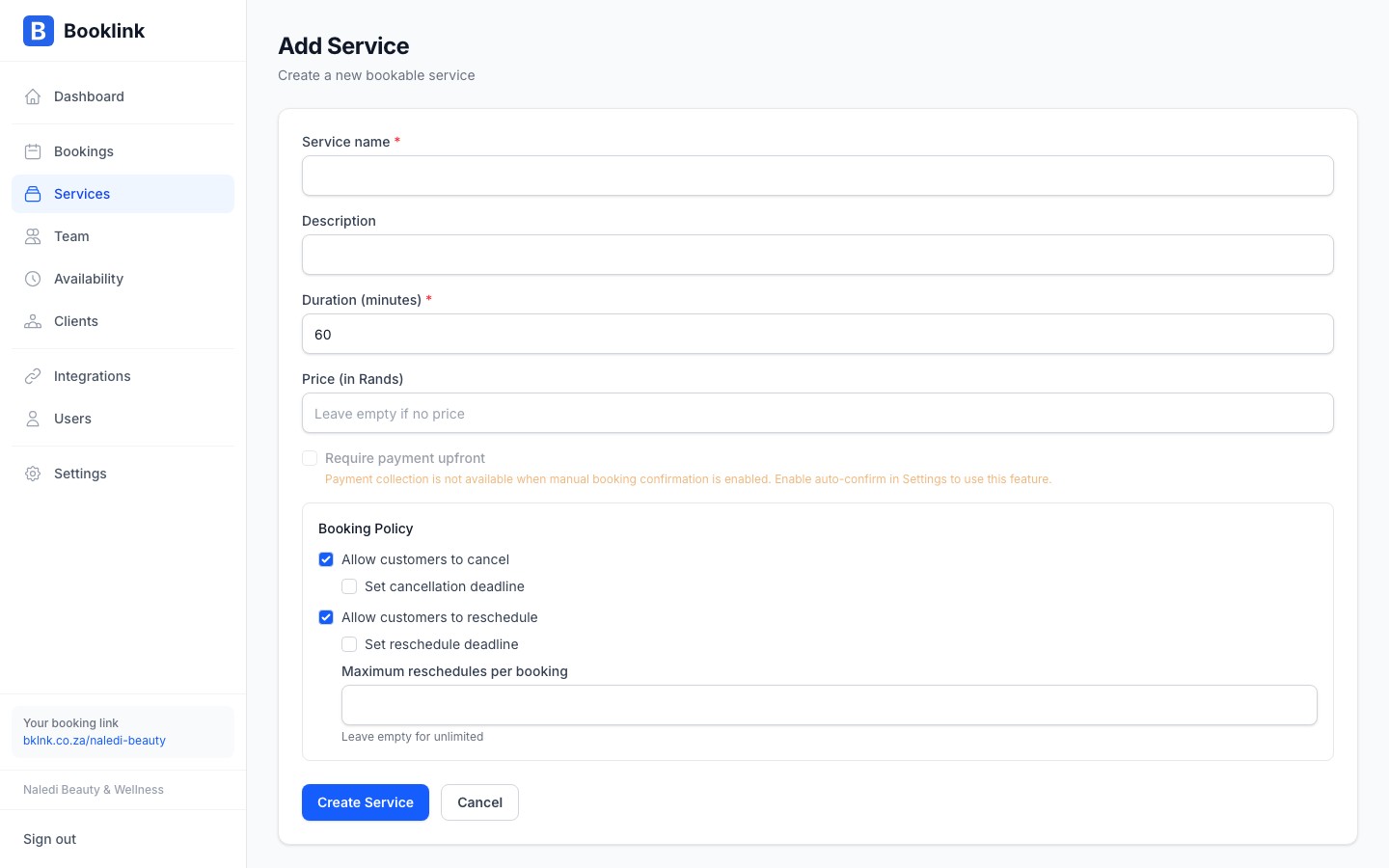
Navigate to Services in the left sidebar and click the Add service button in the top-right corner. The form opens ready for input.
- 2
Enter the service name and description
Type a clear, client-facing service name. For example, Naledi Beauty & Wellness uses names like "Classic Manicure", "Gel Polish Application", and "Swedish Massage – 60 min".
The description is optional but helps clients understand exactly what they're booking. Keep it concise — two or three sentences is ideal.
- 3
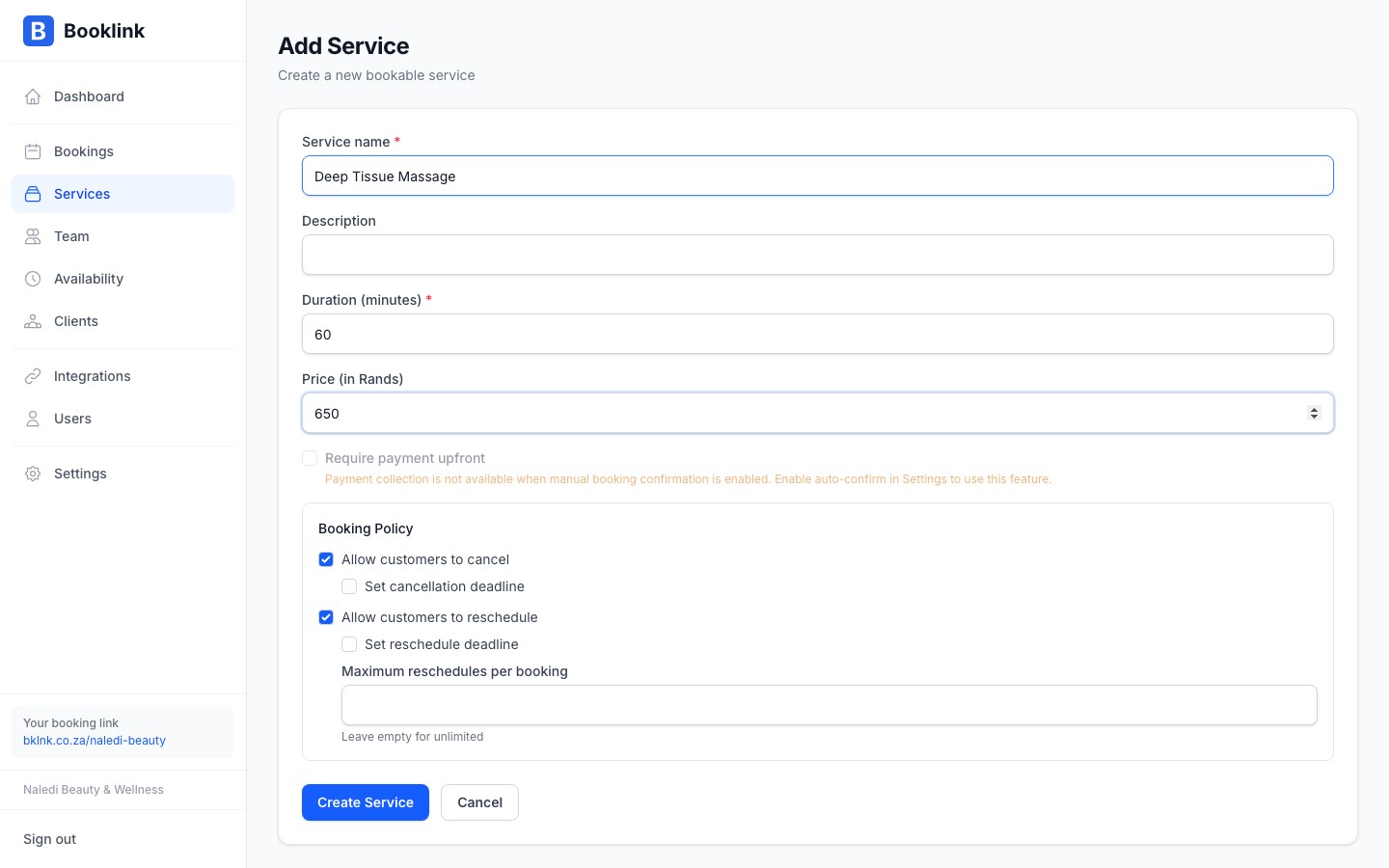
Set the price and duration
Enter the price in Rands (e.g.
250for R250). Enter the duration in minutes (e.g.45for a 45-minute appointment). Booklink uses the duration to calculate available time slots on your booking page. - 4
Check the Active toggle
The Active toggle is on by default. Leave it on so the service is immediately visible on your booking page. You can toggle it off later if you want to hide the service temporarily.
- 5
Save the service
Click Save service. You'll be taken to the service detail page, where you can configure booking policies, payment requirements, and team assignments.
Separate services for separate durations
If you offer the same type of service in different lengths — for example, a 30-minute express facial and a 60-minute deep-cleanse facial — create these as two separate services. This gives clients a clear choice and ensures your calendar blocks the correct amount of time.Note
After saving a service, you can refine it further by setting a booking policy (cancellation and rescheduling rules) or requiring a deposit or full payment upfront. See the related articles for details.