
With multi-service bookings, a customer can pick more than one service on your booking page and book them back-to-back in a single transaction. Think "gel manicure plus pedicure" or "cut plus colour". Booklink combines the durations into one continuous slot, adds up the prices and deposits, and sends a single confirmation. The whole booking is delivered by one team member.
Turning it on
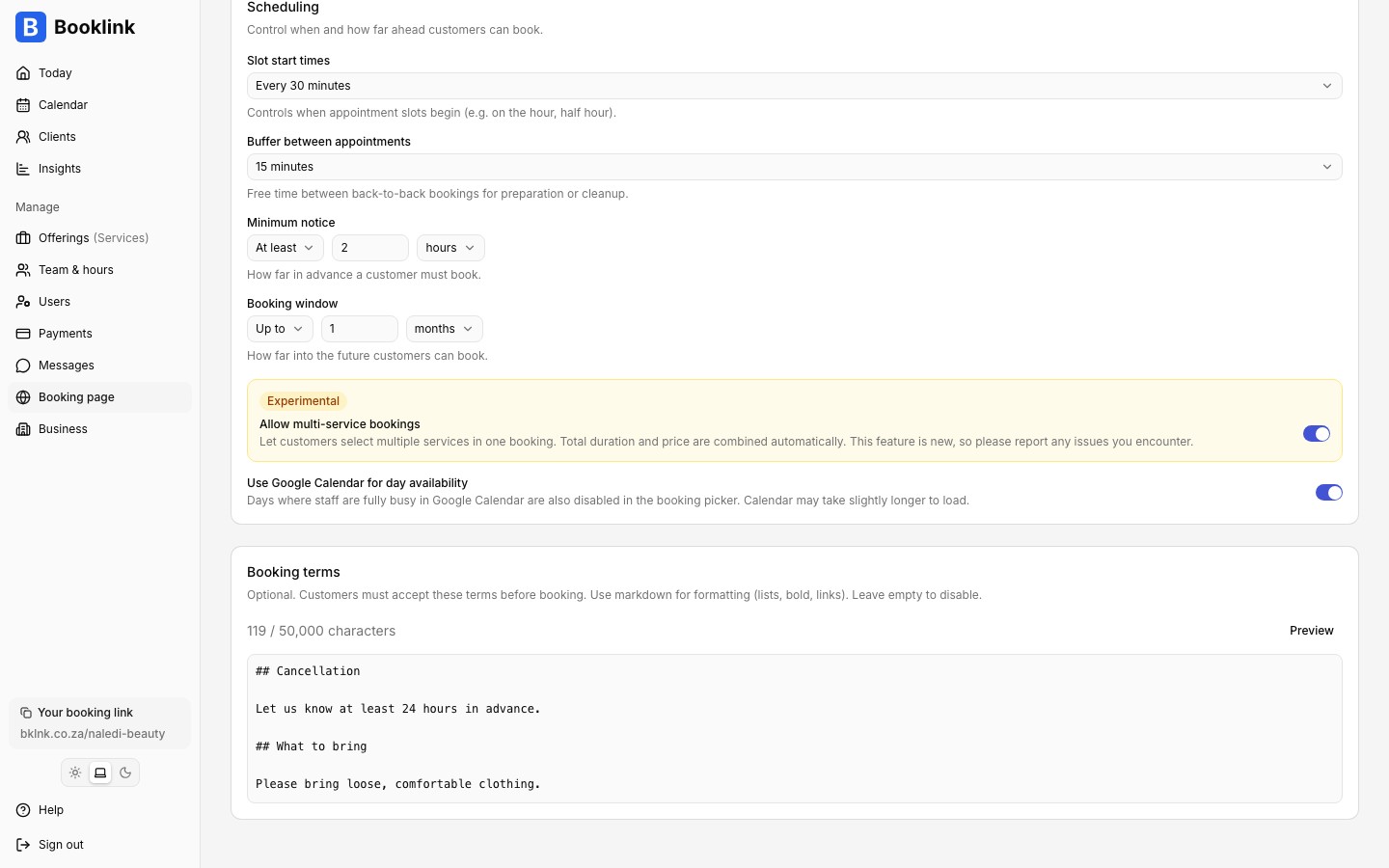
Multi-service bookings are off by default. To enable them, go to Defaults in the sidebar, find the Allow multi-service bookings switch in the Booking options section, and turn it on. The feature is marked as experimental while it beds in, so please report anything that looks off.
What the customer sees
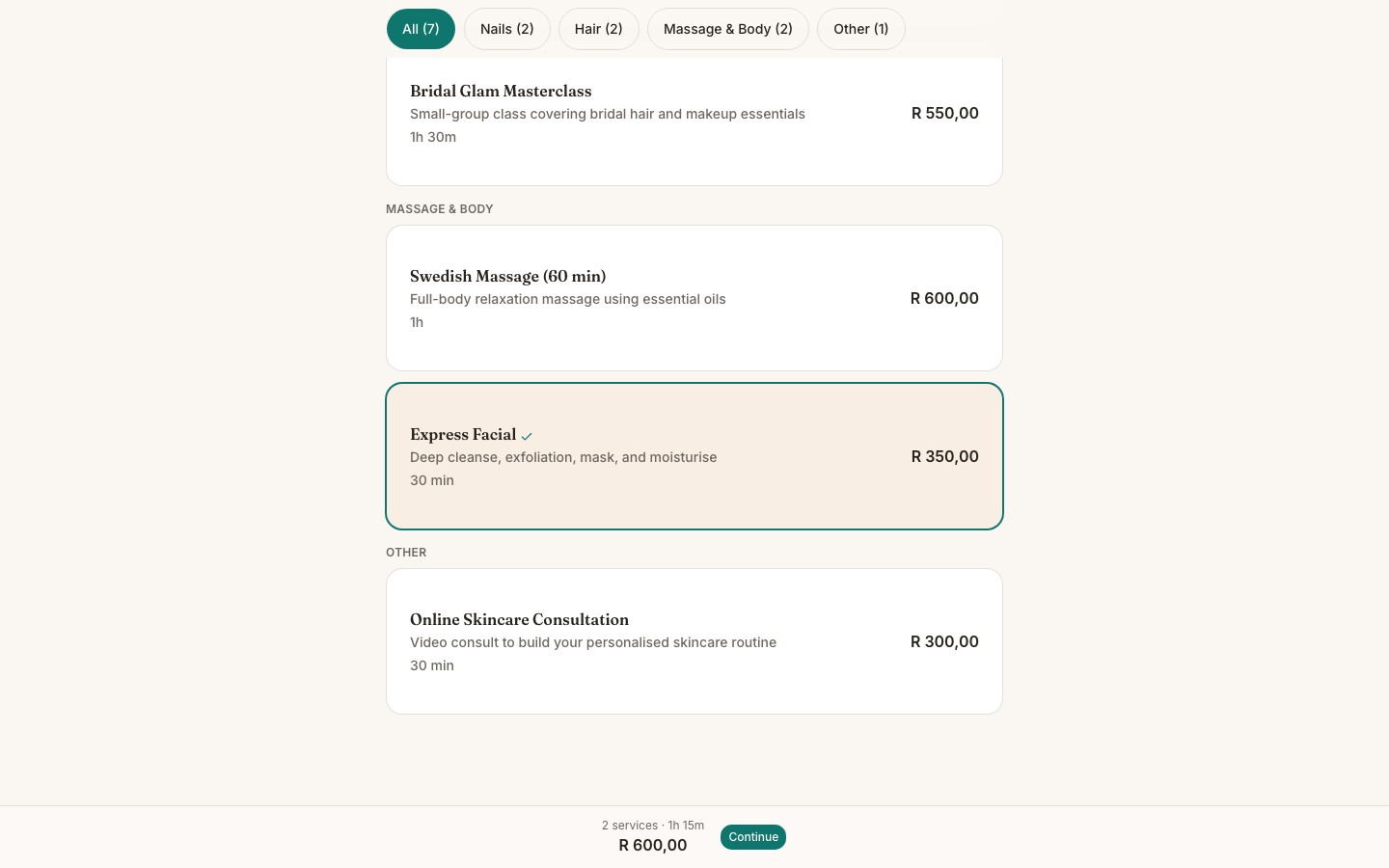
With the setting on, services on your booking page become multi-selectable. As the customer taps services, a summary bar at the bottom of the screen keeps a running total: the number of services, the combined duration, the combined price, and the amount due now if any deposits apply. When they are happy with the selection, they tap Continue and pick a single time slot long enough for everything.
One team member for the whole booking
A multi-service booking is always delivered by one team member, so only combinations that share at least one team member can be booked together. If a customer tries to add a service that no shared team member can deliver, Booklink explains that the combination is not available. When team selection is visible on your page, only members who can deliver every selected service are offered.
How prices, deposits, and policies combine
Booklink combines the selected services like this:
- Duration: the services run back-to-back, so the slot length is the sum of all durations.
- Price: the total is the sum of each service's price.
- Deposits: each service's deposit is added up. If any service requires payment, the whole booking requires payment.
- Cancellation and rescheduling: the strictest rules win. The longest cancellation and rescheduling deadlines apply, the lowest reschedule limit applies, and if any service disallows cancelling or rescheduling, the whole booking disallows it.
- Confirmation: the booking auto-confirms only if every selected service auto-confirms.
On-demand services only
Multi-service selection applies to standard 1:1 appointment services. Group sessions and scheduled services are still booked one at a time.Add-ons that need a main offering
Some offerings only make sense as an extra, such as hot stones with a massage. Open the offering and turn on Add-on (in the Details card, for 1:1 appointment offerings). An add-on shows an Add-on label on your booking page, and clients can only book it together with a main offering: while only add-ons are selected, Continue stays disabled and the summary bar says a main offering is needed.
Add-ons need multi-service bookings. With them turned off, add-ons are not shown on your booking page at all. You can always book an add-on on its own from your dashboard.
Limiting how long a booking can get
Two optional limits sit under Defaults, just below the multi-service switch. Leave either empty for no limit.
- Longest main offerings combined (minutes): stops clients stacking full treatments. With 90, a client can book a 30-minute and a 60-minute treatment together, but not two 60-minute massages. Add-ons don't count towards it, and a single offering is never limited, however long you made it.
- Most add-ons per booking: caps the extras, so a 90-minute massage can take, say, two add-ons but not five.
On your booking page, a tap that would break a limit is refused with a short message, and Continue stays disabled if a change (such as picking a longer variant) goes over. Bookings you make from your dashboard are not limited.
What you see in the dashboard
A multi-service booking appears as a single booking on your Calendar page, covering the full combined time. The booking detail page lists each included service with its own duration and price, plus the combined totals. Cancelling or rescheduling acts on the whole booking at once.
Great for combo appointments
If customers often book the same pair of services together, multi-service bookings save them a second trip through your booking page and guarantee the two appointments are back-to-back with the same person.