While Booklink creates client records automatically from bookings, you can also add clients directly. This is useful when you are getting started and want to import your existing client base, or when you have a walk-in whose details you want on record before they book again.
Adding a new client
- 1
Go to the Clients page
Select Clients from the main navigation menu. - 2
Click Add client
Click the + Add client button in the top-right corner of the page.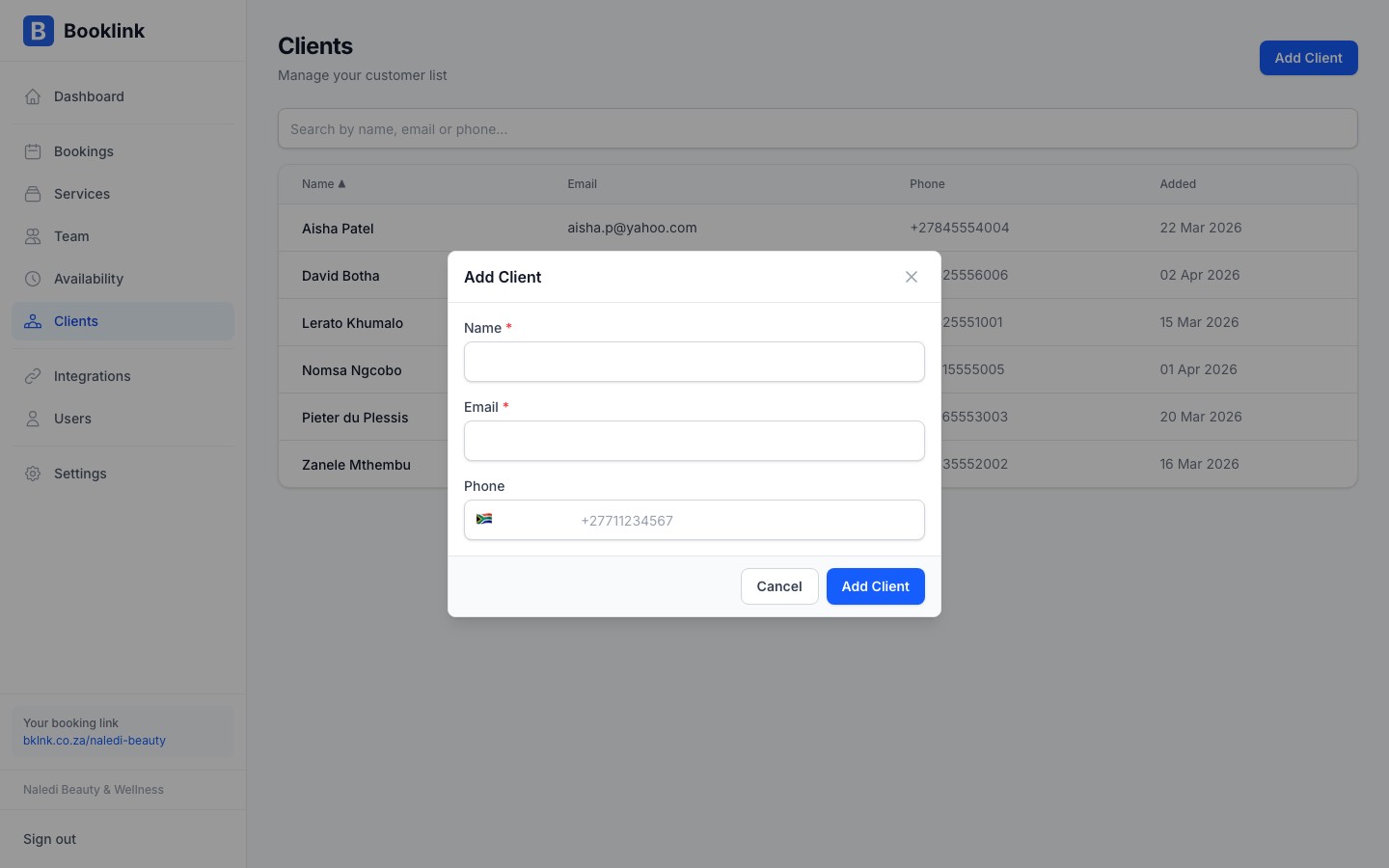
- 3
Fill in the client's details
Enter the client's full name (required), email address, and phone number. Name is the only required field, but an email address is needed if you want Booklink to send them booking notifications. - 4
Save the client
Click Save client. The new client appears in your client list immediately.
Linking a manual client to a booking
Once a client exists in your list, you can select them when creating a manual booking. Start typing their name or email in the client field of the New Booking form and Booklink will auto-complete their details. This links the booking to their existing profile so their history stays consolidated.
Empty state
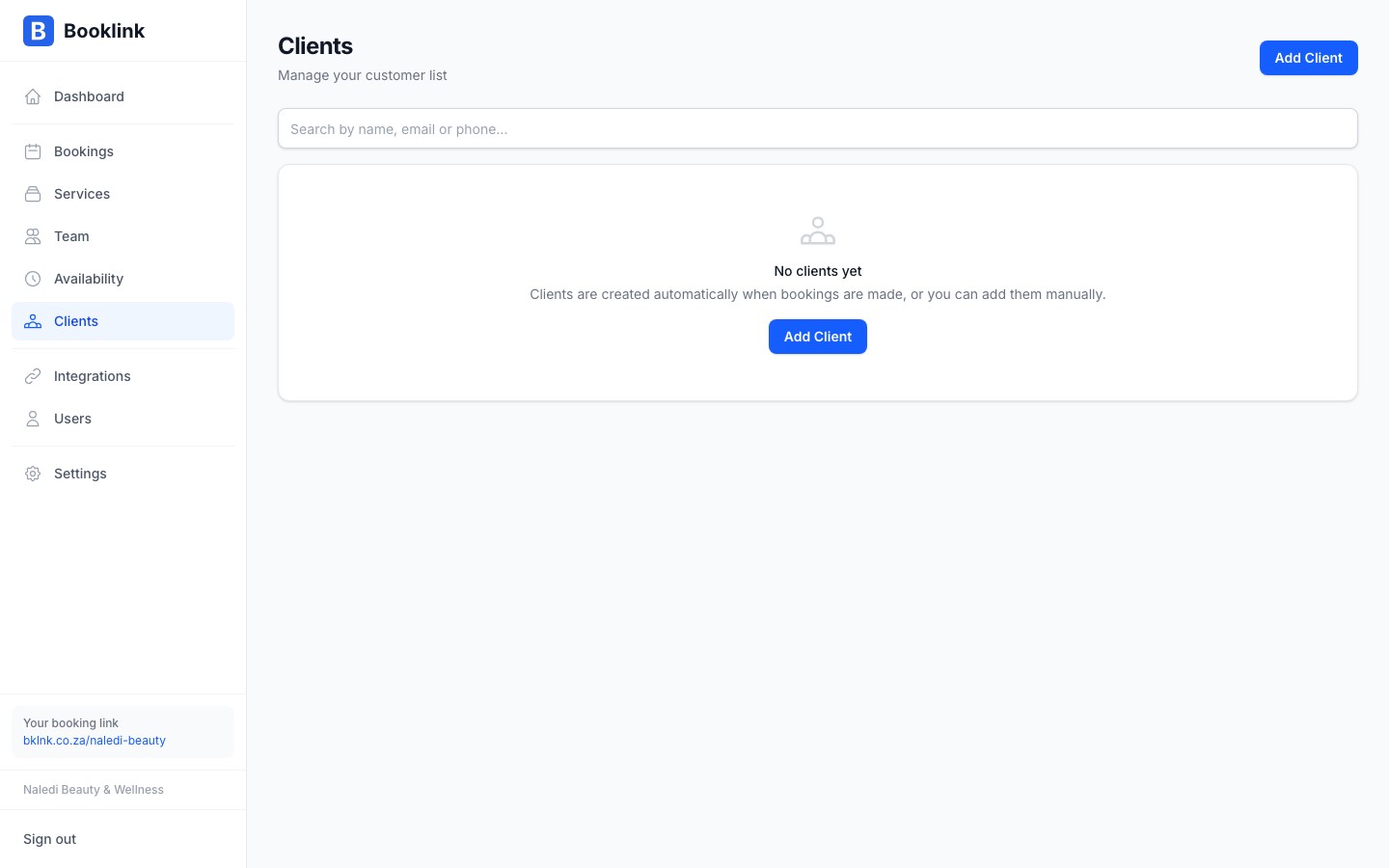
If you have not yet received any bookings and have not added any clients manually, the Clients page shows an empty state prompting you to share your booking link or add your first client.
No bulk import yet
Booklink does not currently support CSV or bulk import. If you have a large existing client list, add the most active ones manually and let the rest build up naturally as they rebook.