Your booking link is the URL you give to clients so they can book with you online. It's personalised to your business — for example, Naledi Beauty & Wellness uses bklnk.co.za/naledi-beauty. Once you've set up your services and availability, share this link anywhere your clients might find you.
Finding your booking link
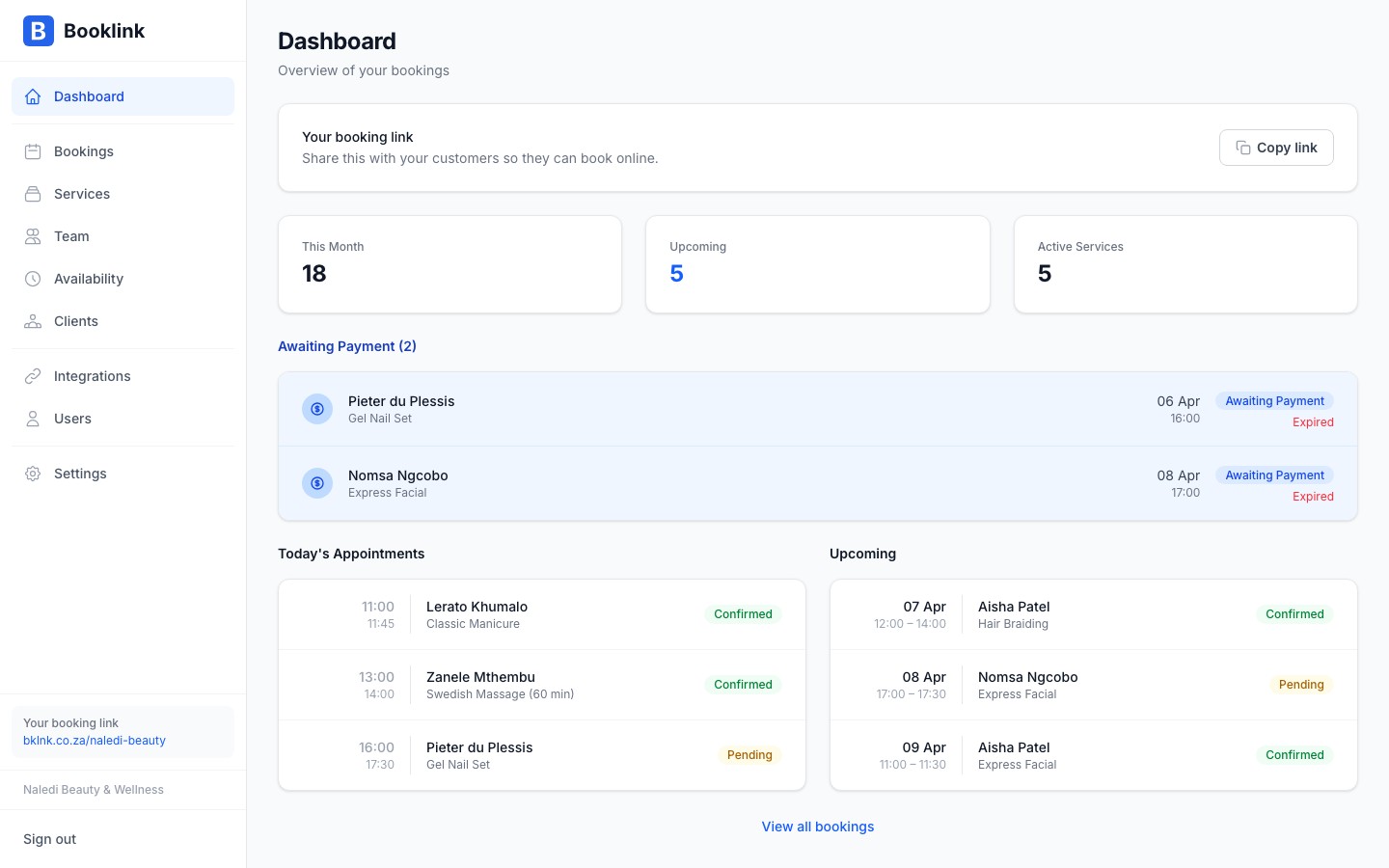
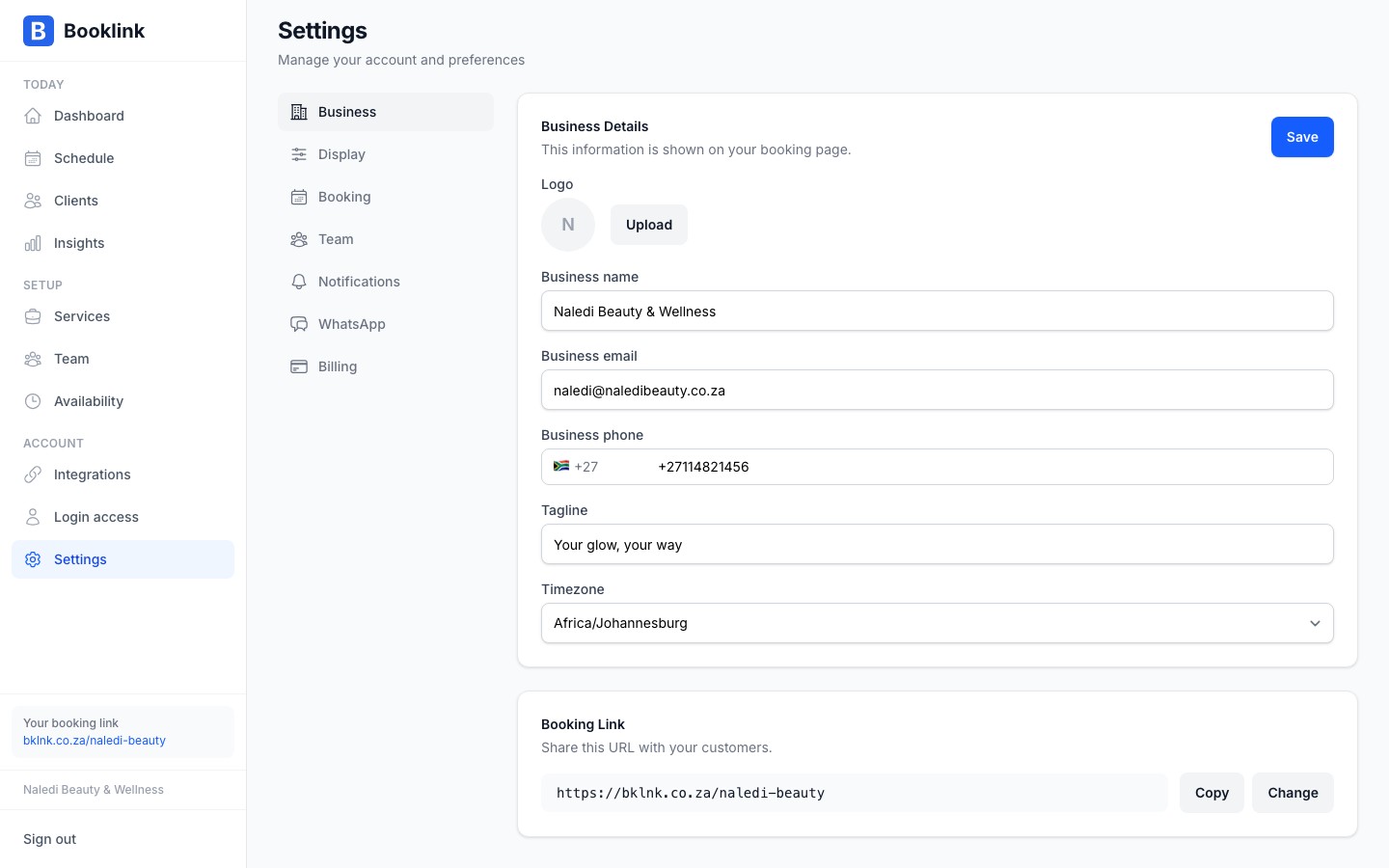
Your booking link appears on the Today page, ready to copy or share. You can also find it (and change it) under Branding in the sidebar, in the Booking link section.
Where to share your booking link
You can share your booking link anywhere your clients can find you:
- WhatsApp — Add it to your WhatsApp Business profile, or paste it in replies to enquiries
- Instagram — Put it in your bio link, or share it in your stories
- Facebook — Add it as a button on your Facebook page, or post it on your feed
- Email signature — Include it in every email you send
- Google Business Profile — Add it as your appointment link so clients can book directly from Google Search and Maps. See Add your booking link to Google for the steps
- Your website — Embed the link as a button or text link
- Business cards & flyers — Print it as a short URL or QR code
Generate a QR code
Any free QR code generator (such as qr-code-generator.com) can turn your booking link into a QR code. Print it on your reception desk card, price list, or appointment reminders so clients can scan and book instantly.Your booking slug
Your slug is the unique identifier at the end of your booking URL — for example, naledi-beauty in bklnk.co.za/naledi-beauty. It is set when you create your account.
Your slug should be:
- Short and memorable
- Related to your business name
- Lowercase letters, numbers, and hyphens only
Important
If you change your slug after you've already shared your booking link, any existing links you've distributed (in your bio, on flyers, in emails) will stop working. If you need to change it, make sure to update all the places you've shared the old link.