Every booking confirmation email contains a unique "manage my booking" link. Clients can click this link at any time to view their appointment details, request a reschedule, or cancel without needing to contact you directly. This reduces the back-and-forth and lets you focus on the actual work.
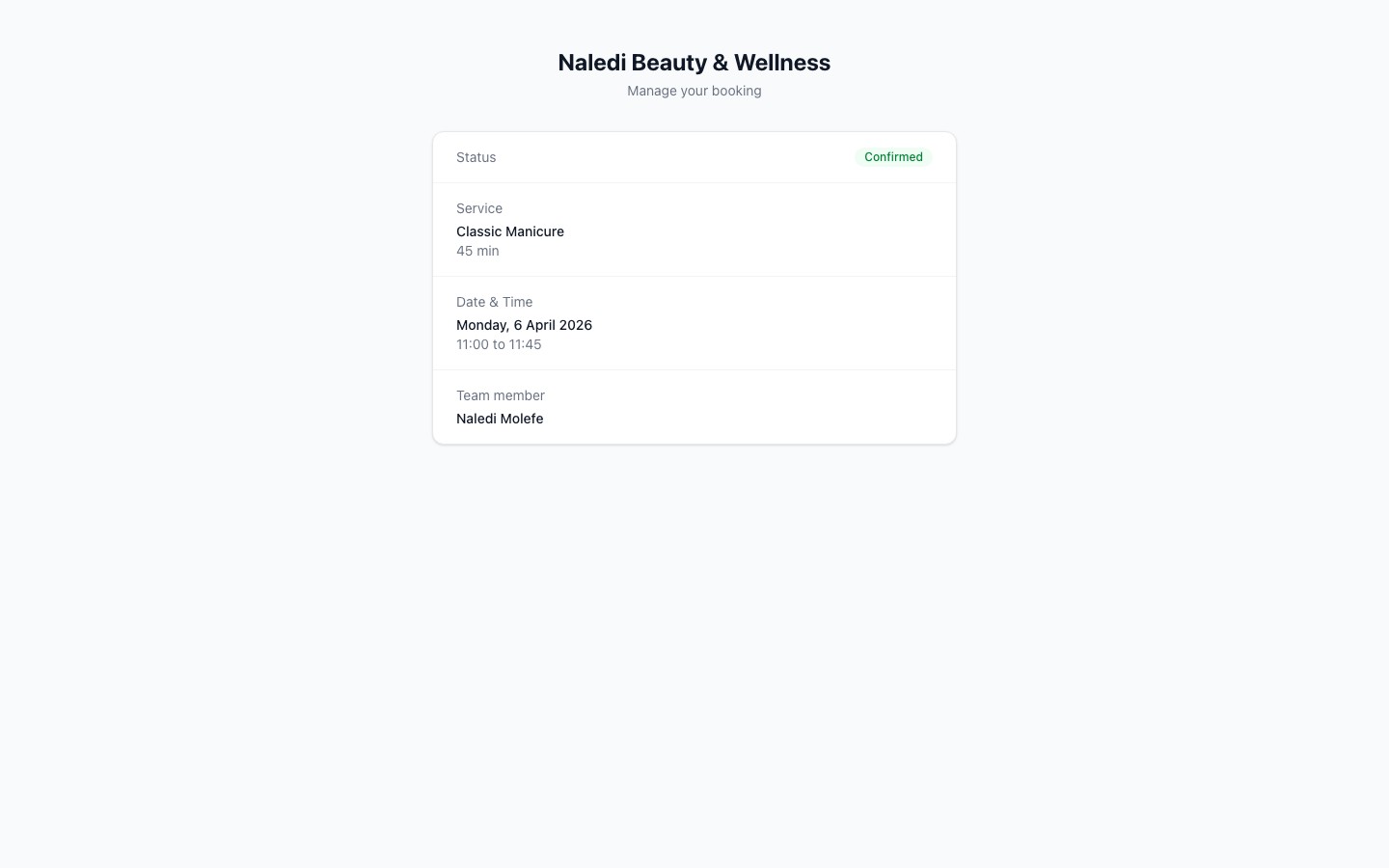
The manage booking page
When a client opens their manage-my-booking link, they see a summary of their confirmed appointment: service, date, time, team member, and your business contact information.
Rescheduling
To reschedule, the client clicks Reschedule on the manage page. They are taken through the same date and time selection as the original booking flow, with only future available slots shown.
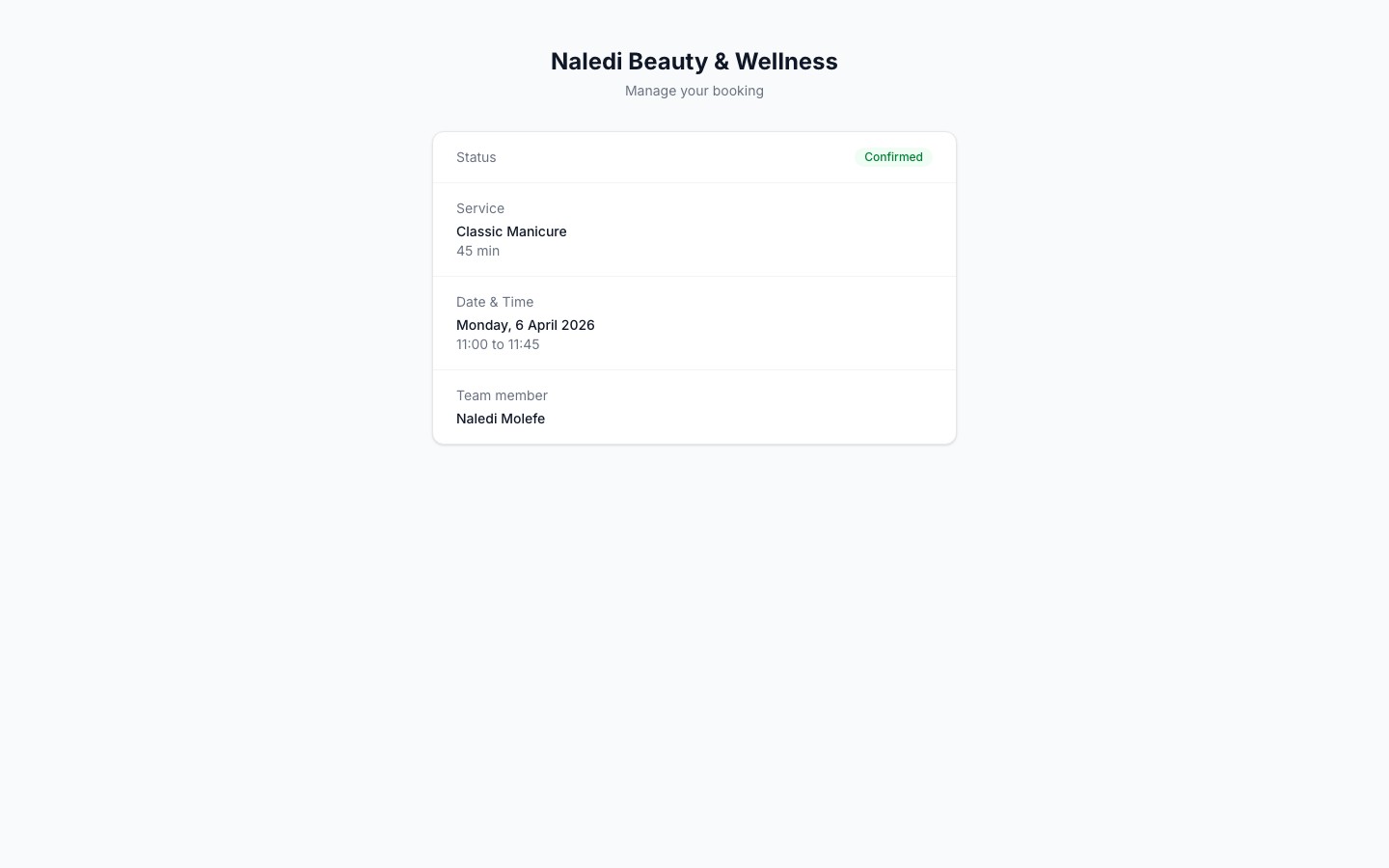
Once they select a new slot and confirm, the booking is updated automatically. You will see the new time in your dashboard and the client receives an updated confirmation email.
Cancelling
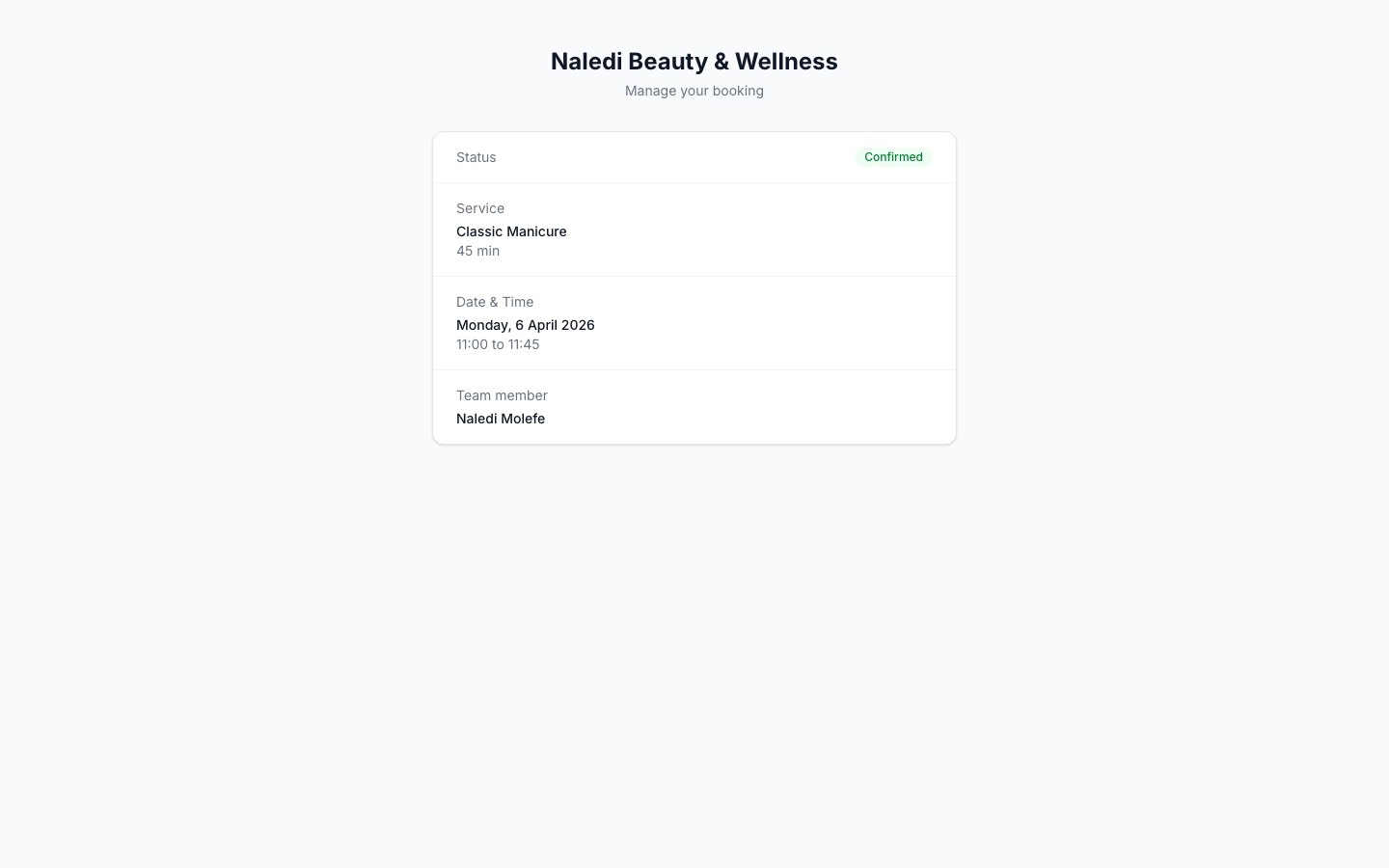
If the client wants to cancel, they click Cancel booking on the manage page. A confirmation prompt asks them to verify before proceeding. Once confirmed, the booking is cancelled and you receive a cancellation notification.
The link is unique per booking
Each manage-my-booking link is specific to one booking. If a client makes multiple bookings, each confirmation email contains its own separate link. Old links for cancelled or completed bookings remain accessible but no actions can be taken on them.Setting a cancellation deadline
Currently, clients can cancel or reschedule up until the booking time. If you need a minimum notice period before clients can self-serve, contact support — this is on the roadmap.