
Your booking page is often the first impression a new client has of your business. Everything that shapes how it looks lives under Branding in the sidebar: your logo, tagline, and link on every plan, plus full colour and font customisation on Pro.
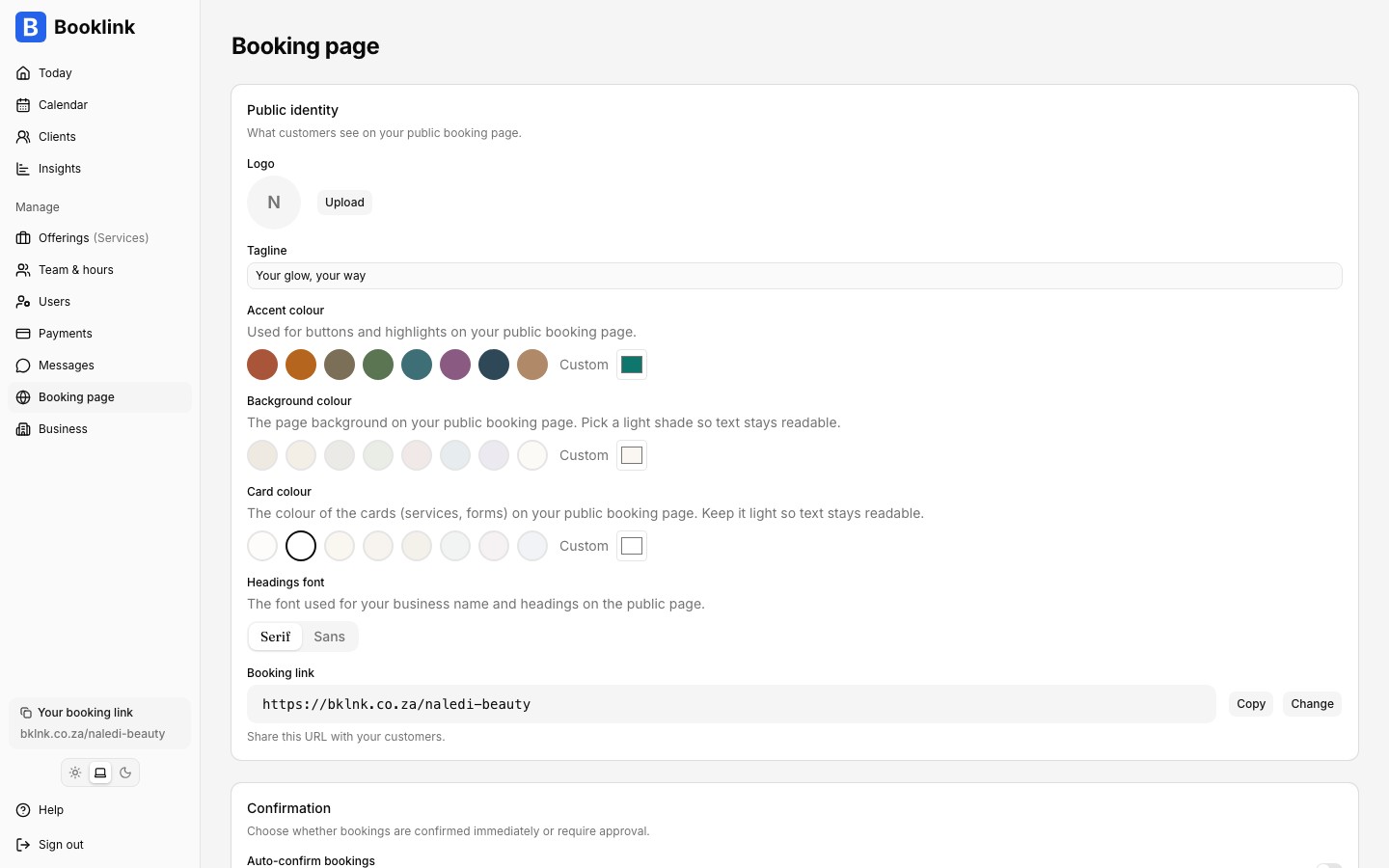
Logo and tagline
In the Page look card, click Upload to add your logo (PNG, JPEG, or WebP, up to 2 MB). It is displayed at the top of your booking page above your business name. Square images work best.
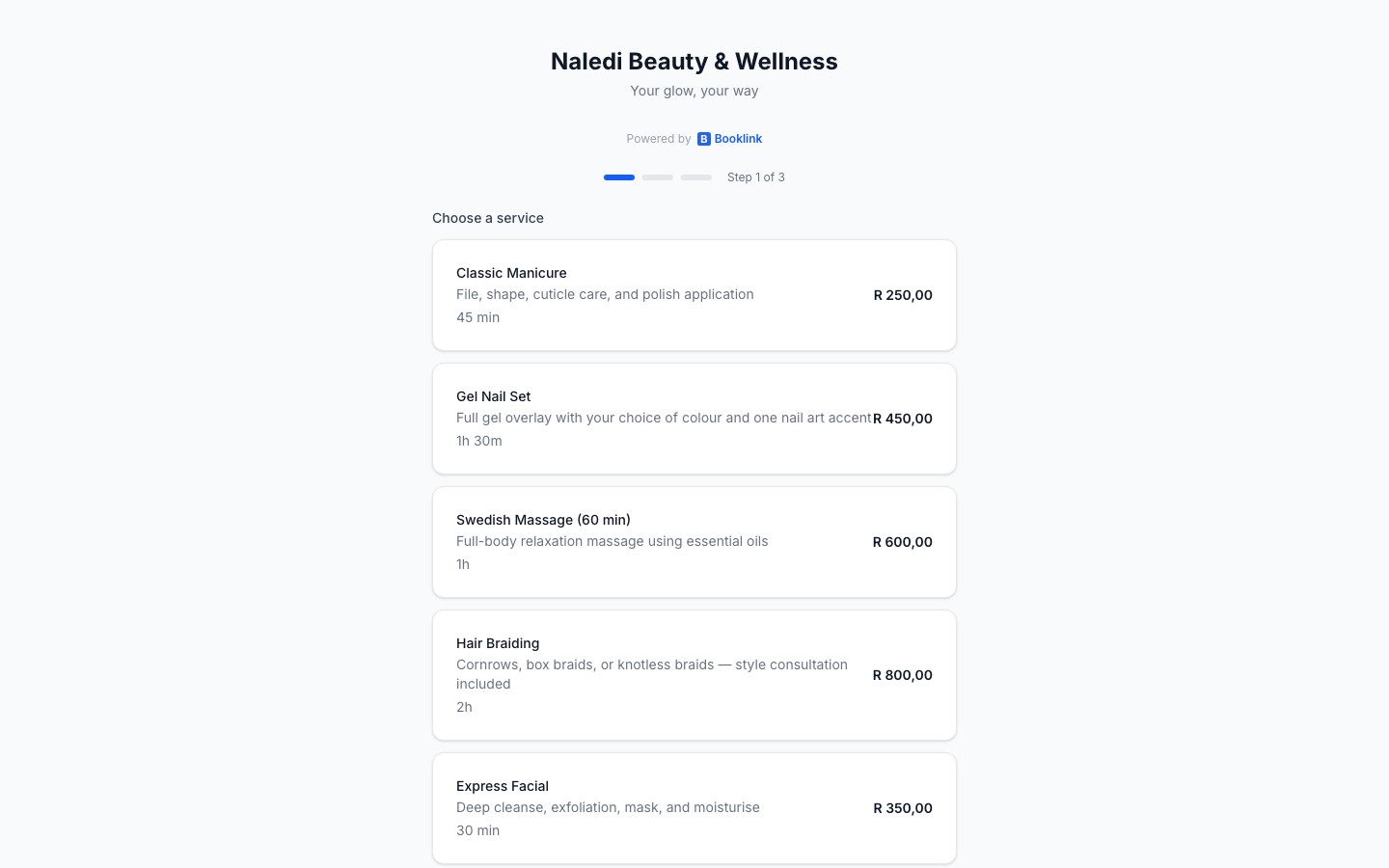
The tagline is an optional one-liner shown below your business name, for example "Lash extensions & brow shaping in Sandton".
The welcome message is a longer, optional note shown under your name on the first step of the booking page, before the service list. Use it for the warmer things a tagline cannot hold: a thank you, what to expect on a first visit, parking directions. Leave a blank line between paragraphs and keep it under 600 characters. Leave it empty and nothing shows.
Colours and fonts (Pro)
On Pro you can restyle the whole page:
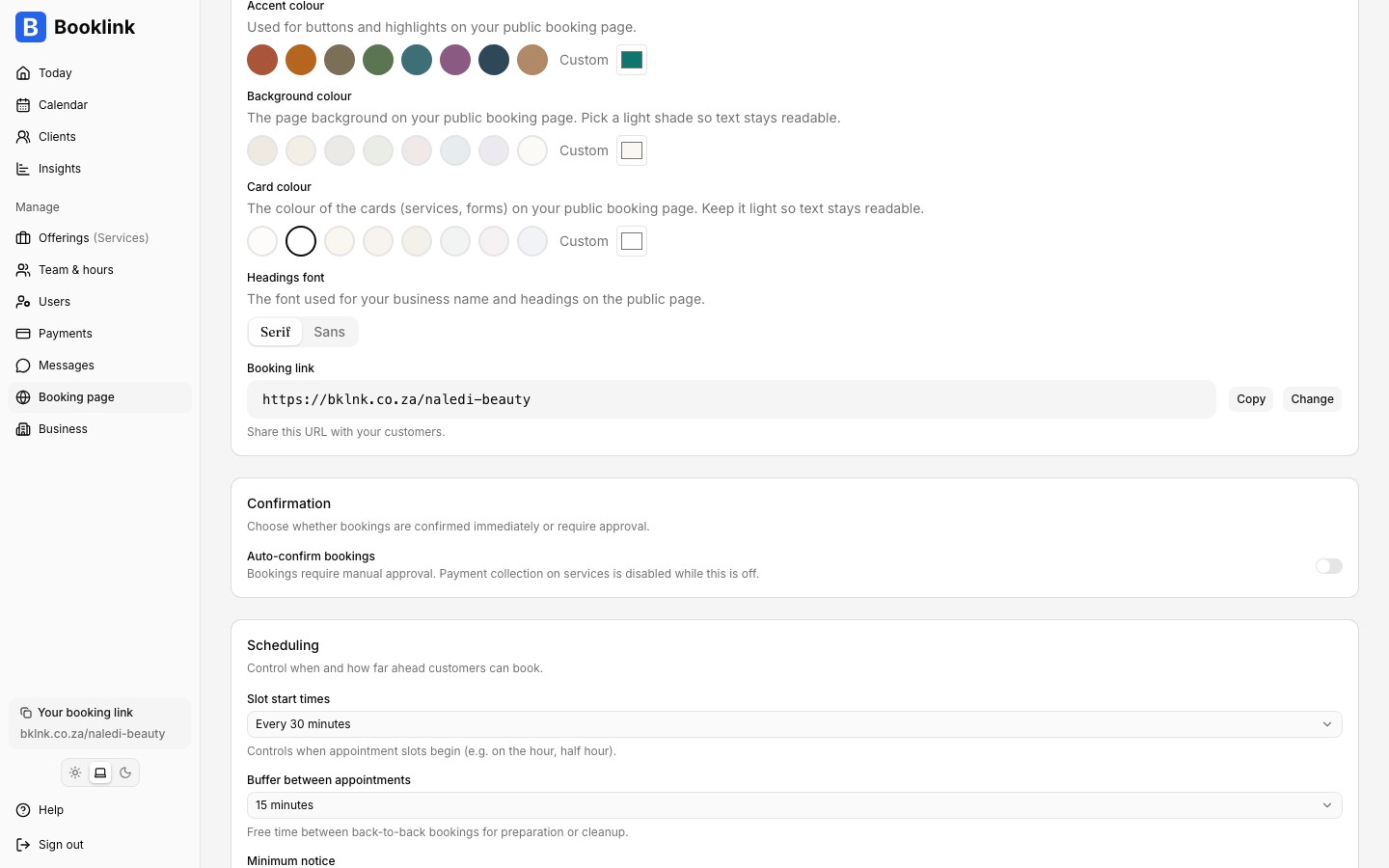
- Accent colour: used for buttons and highlights. Pick one of the curated swatches or choose any custom colour.
- Background colour: the page background. Pick a light shade so text stays readable.
- Card colour: the colour of the service cards and forms.
- Headings font: choose between an elegant Serif and a clean Sans for your business name and headings.
On the free plan these controls are locked and your page uses the default warm Booklink look. Pro pages also drop the "Powered by Booklink" footer.
Contact details (Pro)
You can show your email, phone, and website in the booking page header and in customer booking emails. Each has its own switch under Branding in the sidebar, in the Contact details card.
Your booking link
The Booking link section shows your full URL, for example bklnk.co.za/naledi-beauty, with a one-click Copy button. Click Change to pick a new slug. Slugs must be lowercase and contain only letters, numbers, and hyphens.
Changing your link breaks old links
If you change your booking link, any links you have already shared (in your Instagram bio, on WhatsApp, on flyers) will stop working. Booklink warns you before the change is applied. Update all your shared links afterwards.Team visibility
Whether clients can see and pick a specific team member is controlled on the Team & hours page, in the Public team display card. See Team display and assignment.
Keep your tagline short
A good tagline is one sentence that tells a new visitor exactly what you do and where. For example: "Nail art, lash extensions, and facials in Johannesburg." This helps clients quickly decide if they are in the right place.