If your business has more than one person providing services, you have two decisions to make: should clients be able to pick who sees them, and if not, how should Booklink decide who gets assigned each booking?
Team display mode
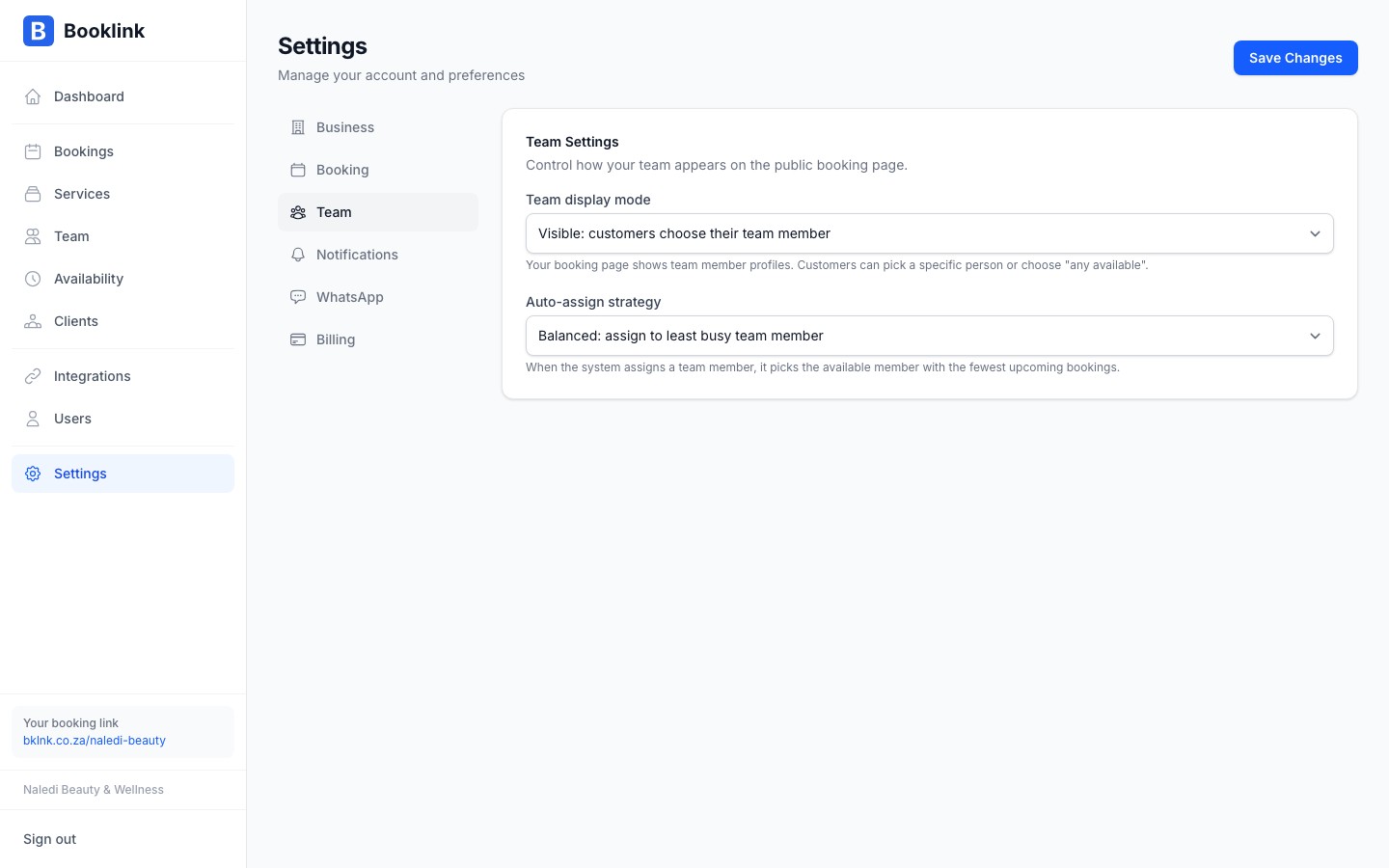
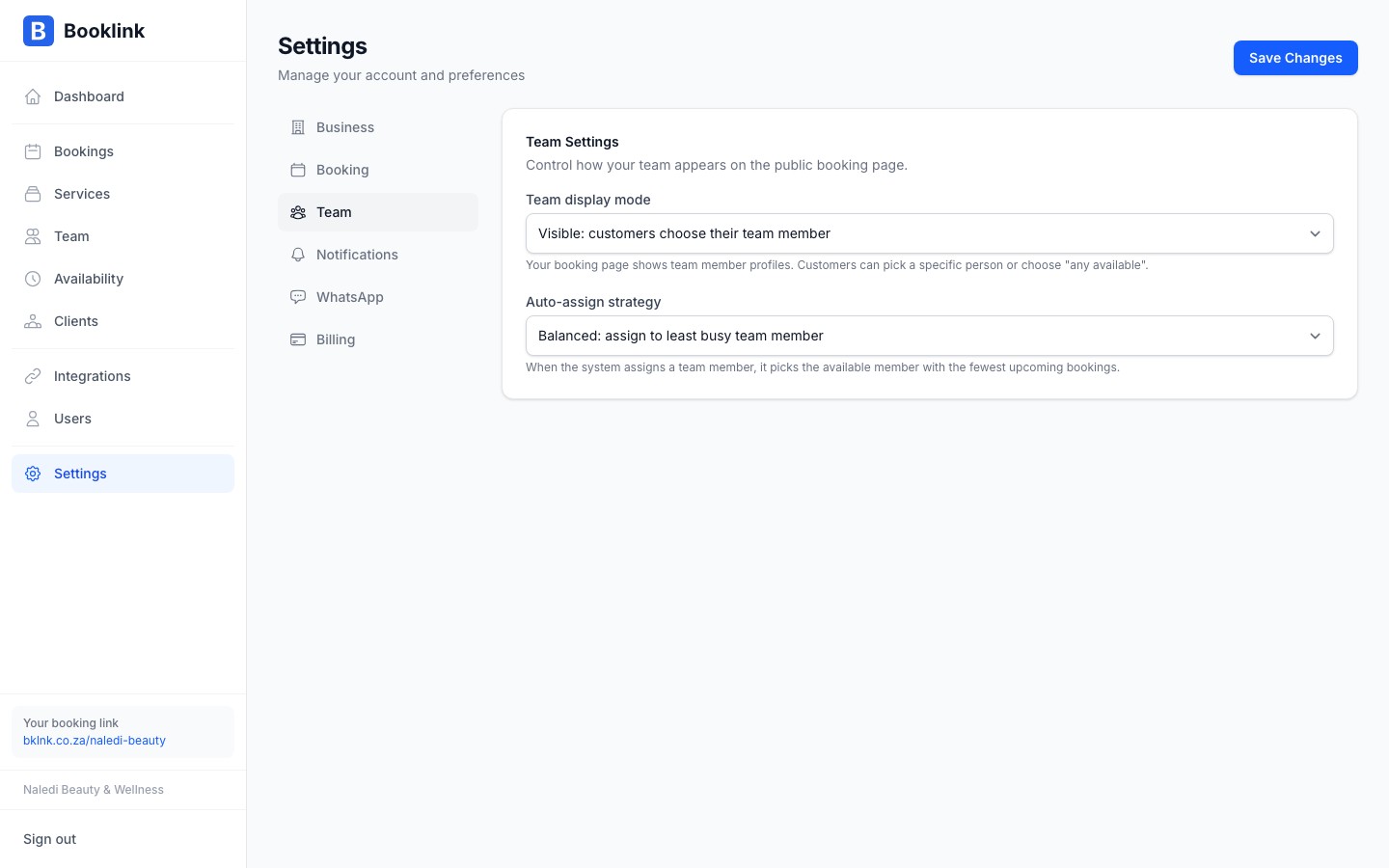
Go to Settings → Team to find the Team display mode setting. This controls whether the team member selection step appears on your public booking page:
- Visible — clients see a step where they can select a specific team member by name (and photo if uploaded). They can also choose "Any available" to let Booklink decide.
- Hidden — the team member selection step is skipped entirely. Clients just pick a service, date, and time. Booklink assigns a team member automatically.
Auto-assign strategy
When team visibility is hidden, or when a client selects "Any available", Booklink uses your auto-assign strategy to pick a team member for the booking. Two strategies are available:
- Priority — team members are ranked in a set order. Booklink always assigns the first available team member in the list. Useful if one person is the primary provider and others are backups.
- Balanced — Booklink distributes bookings as evenly as possible across all available team members. Useful if everyone has equal skills and you want to spread the workload fairly.
Solo businesses
If you are the only person in your business, set team display to Hidden. There is no need to show clients a one-person selection step, and you will always be assigned automatically.