
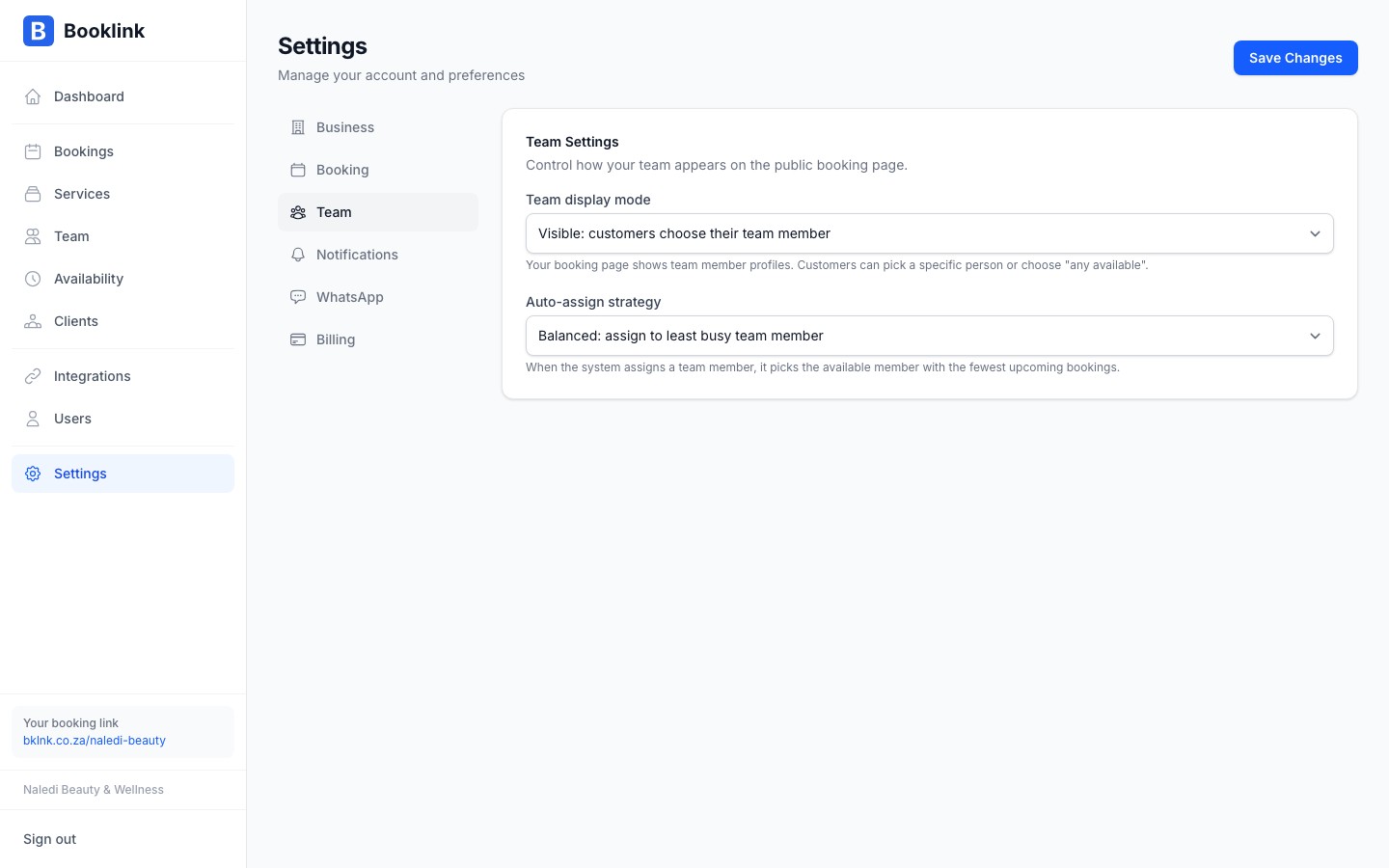
If your business has more than one person providing services, you have two decisions to make: should clients be able to pick who sees them, and if not, how should Booklink decide who gets assigned each booking? Both settings live on the Team page, in the Public team display card at the top.
Team display mode
Go to Team & hours in the sidebar and expand the Public team display card. The Team display mode setting controls whether the team member selection step appears on your public booking page:
- Visible: the booking page shows member profiles. Customers can pick a person or choose "any available" to let Booklink decide.
- Hidden: the booking page shows your business name only. The team member selection step is skipped and Booklink auto-assigns the best available member.
Auto-assign strategy
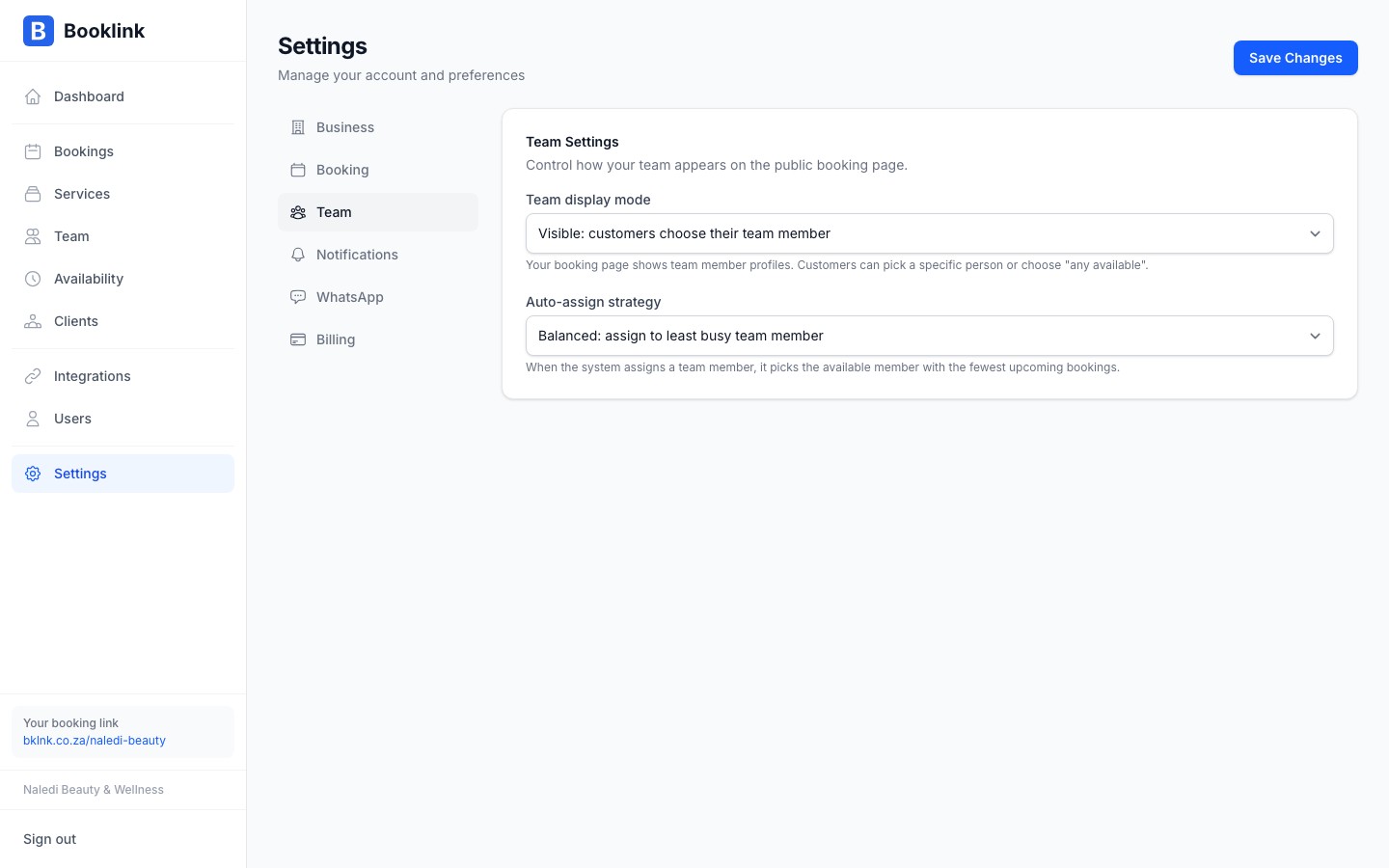
When team display is hidden, or when a client selects "any available", Booklink uses your auto-assign strategy to pick a team member for the booking. Two strategies are available:
- Priority: assign the first available member by their order in the team list. Drag team members up or down on the Team page to set this order. Useful if one person is the primary provider and others are backups.
- Balanced: assign the available member with the fewest upcoming bookings. Useful if everyone has equal skills and you want to spread the workload fairly.
Solo businesses
If you are the only person in your business, set team display to Hidden. There is no need to show clients a one-person selection step, and you will always be assigned automatically.