A service is the core building block of Booklink. It represents something your clients can book — for example, "Classic Manicure", "60-min Remedial Massage", or "Personal Training Session". Each service has a name, description, price, and duration. Once a service exists, clients can see it on your booking page and choose a time slot.
Creating your first service
- 1
Open the Services page
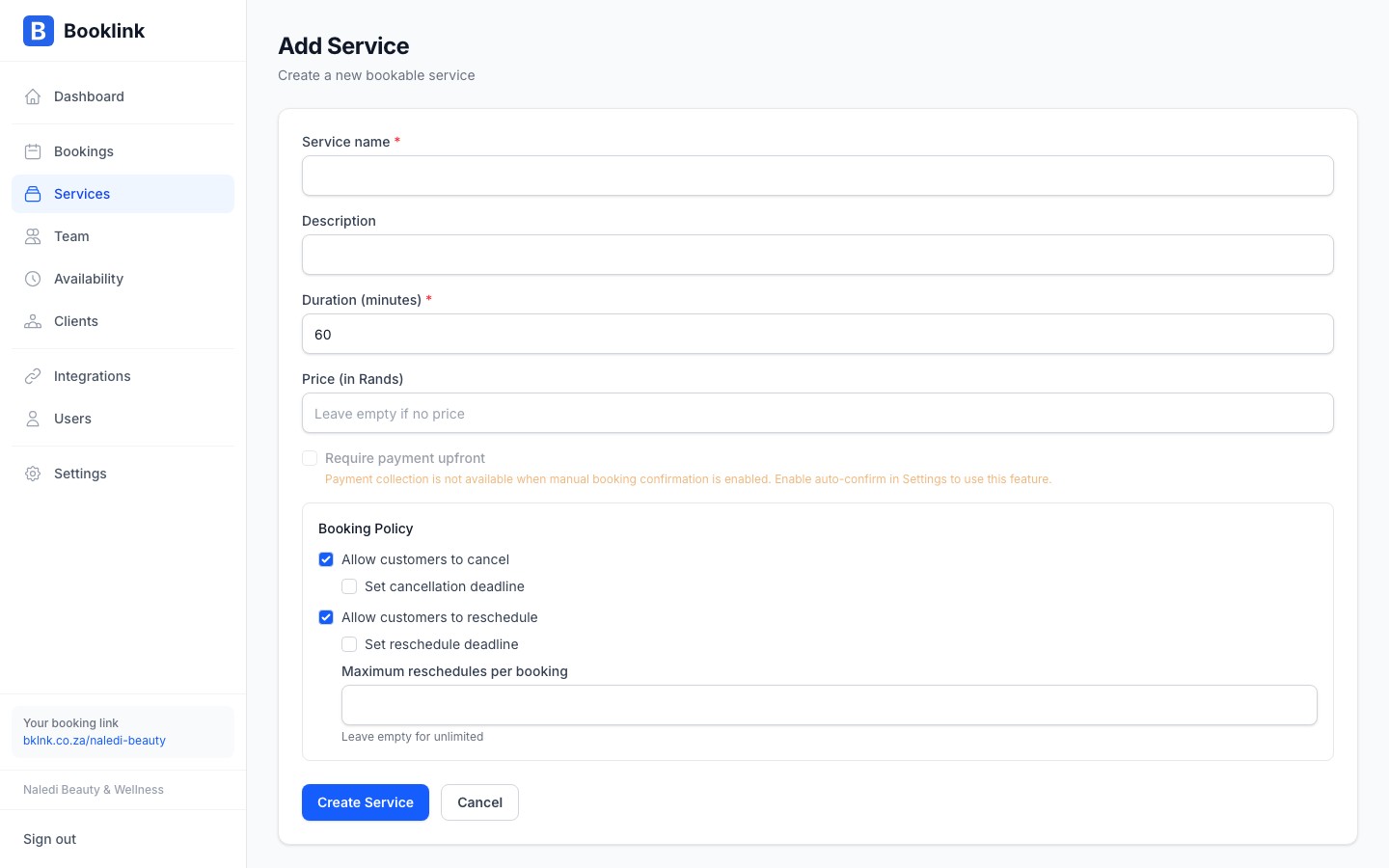
Click Services in the left navigation. If you haven't added any services yet, you'll see an empty state with a prompt to add your first one. Click Add service.
- 2
Fill in the service details
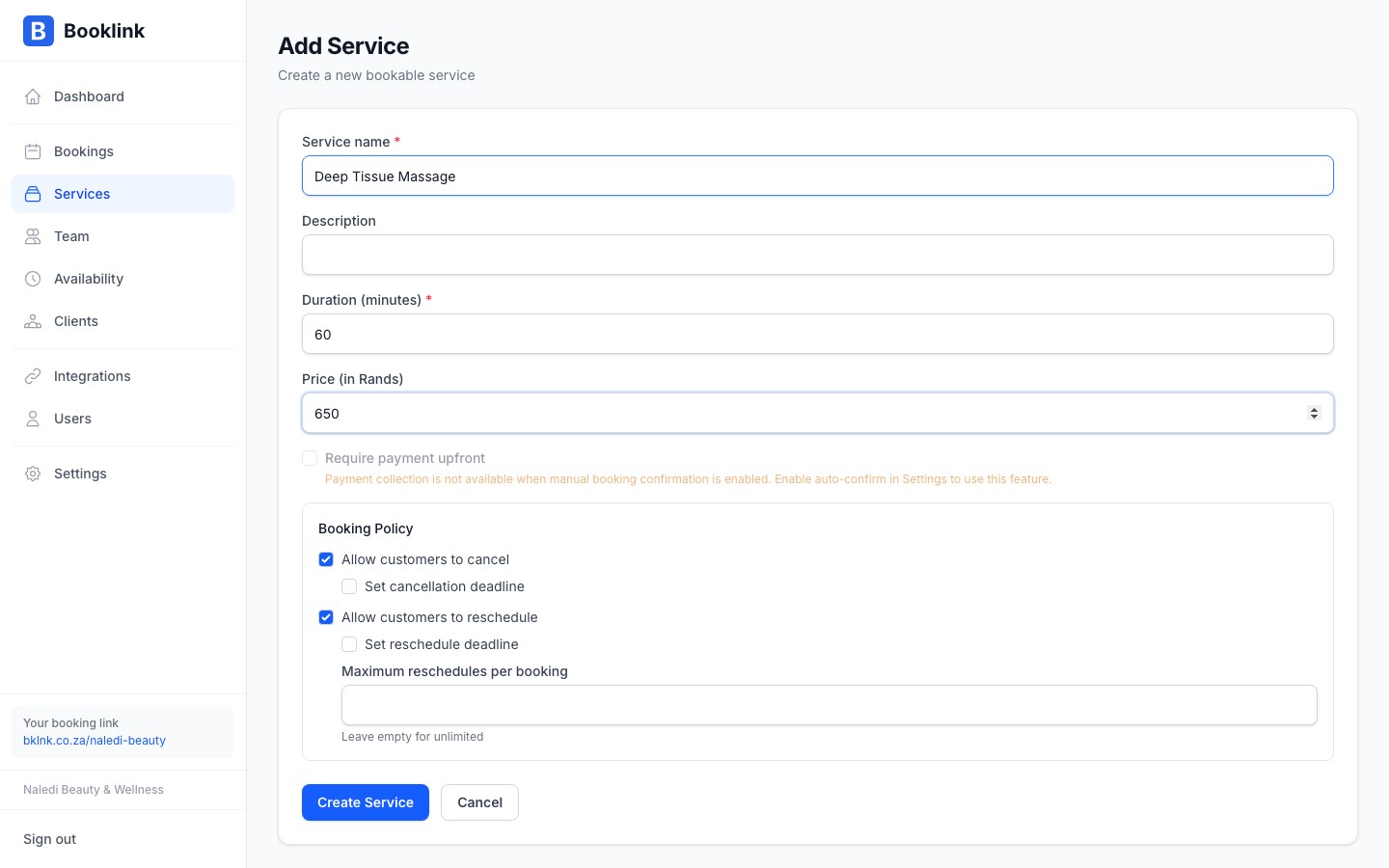
Complete the form with the following information:
- Service name — A clear, client-facing name (e.g. "Classic Manicure")
- Description — Optional but recommended. Briefly describe what's included.
- Price — The amount in South African Rand (e.g. 250 for R250)
- Duration — How long the appointment takes in minutes (e.g. 45)
- Active — Leave this on so the service appears on your booking page
- 3
Save the service
Click Save service. The service will immediately appear on your booking page for clients to book.
Use clear, specific names
Client-facing service names should be easy to understand. "Classic Manicure — 45 min" is clearer than just "Manicure". If you offer multiple durations of the same service, create separate services for each (e.g. "30-min Consultation" and "60-min Consultation").Note
Prices are stored in cents internally but displayed and entered in Rands. Enter250 for R250, not 25000. What happens next?
Once your service is saved, clients can see it on your booking page at booklink.co.za/book/your-slug. They'll select the service, pick a date and time, and enter their contact details to complete the booking.
From here you can also:
- Set booking policies (cancellation and rescheduling rules)
- Require a deposit or full payment before confirming
- Assign the service to specific team members